

Blog
Simple HTML PayPal Donation Form: Sandbox Example

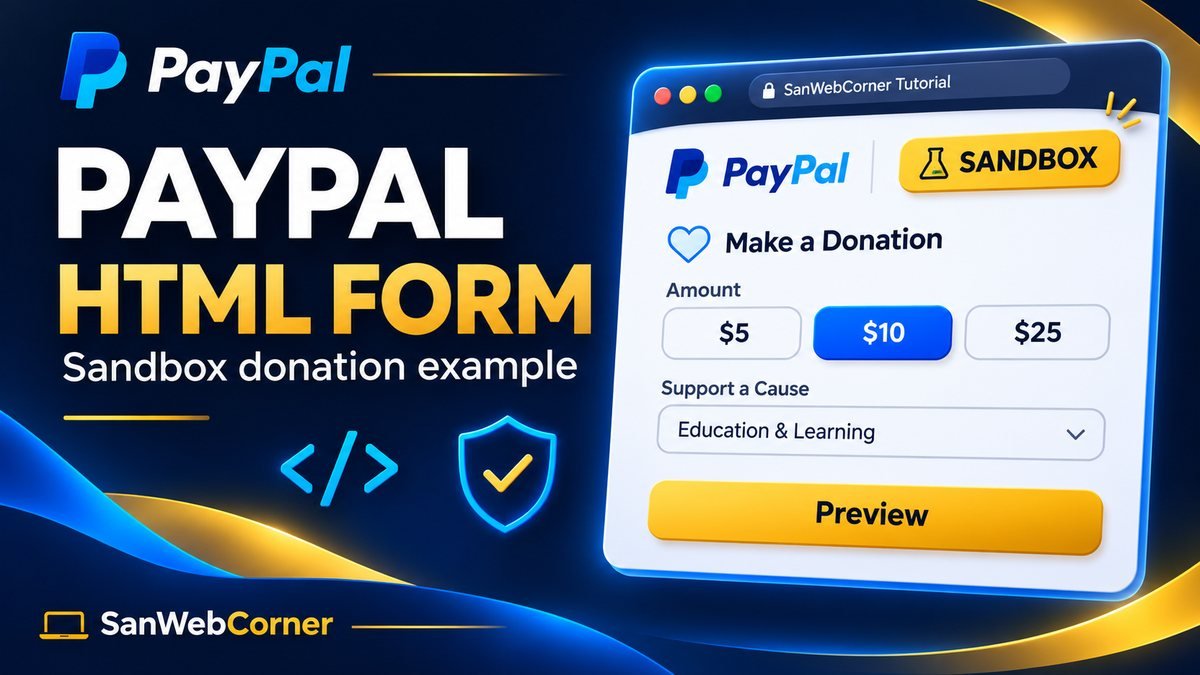
A simple HTML PayPal integration form can collect a donation amount and send the visitor to PayPal to review it. This rebuilt example separates a local form preview from a Sandbox integration so you can understand the fields before testing with a receiving account.
The downloadable project includes responsive styling, suggested amounts, validation, and a Sandbox-only page. The live preview below does not sign in to PayPal or submit a payment.
Choose the right PayPal flow
The original version of this post used the legacy Buy Now command for a donation example. PayPal now identifies that Buy Now integration as deprecated and recommends Payment Links and Buttons for that use case. This tutorial uses donation semantics for its Sandbox form.
For a live donation page, check your account’s eligibility and use PayPal’s hosted Donate button builder or Donate SDK. For selling products or services, use Payment Links and Buttons or PayPal Checkout. A donation form is not a substitute for a product checkout.
Live form preview
Choose a sample purpose and amount, then review the result. You can also inspect the example fields that a configured donation form would send. The receiver is a placeholder, and nothing leaves this page.
Support a learning project
Choose a sample purpose and amount, then review the form. This preview stays on this page.
- Purpose
- Amount
- Environment
- Sandbox example
No payment was submitted.
View example form fields
Ready to preview. No PayPal sign-in is needed.
Enable JavaScript to use this demonstration. The preview does not submit payments.
1. Understand the donation fields
The form needs an endpoint, a receiving account, a donation command, and contribution details. The receiver identifies who collects the donation. Use your own Sandbox receiving account for tests; a normal live account and a Sandbox account are different environments.
| Field | Purpose |
|---|---|
cmd |
_donations identifies a donation. |
business |
The configured Sandbox receiver email or merchant ID. |
item_name |
A readable donation purpose. |
item_number |
A reference for this example. |
amount |
The chosen contribution amount. |
currency_code |
The currency, USD in this project. |
2. Build the HTML form
Use associated labels for the select and amount input. A number input with minimum, maximum, and step values helps visitors enter an amount in the expected format. The demo limits amounts to $1.00–$500.00 USD.
The following is a structural Sandbox example. Replace the receiver placeholder with your own Sandbox receiving information before testing. Do not place a password, client secret, or access token in HTML.
<form action="https://www.sandbox.paypal.com/cgi-bin/webscr" method="post">
  <input type="hidden" name="cmd" value="_donations">
  <input type="hidden" name="business" value="YOUR_SANDBOX_RECEIVER">
  <input type="hidden" name="currency_code" value="USD">
  <input type="hidden" name="item_number" value="SWC-DEMO">
  <label for="purpose">Donation purpose</label>
  <select id="purpose" name="item_name">
    <option value="Learning resources">Learning resources</option>
    <option value="Open-source examples">Open-source examples</option>
  </select>
  <label for="amount">Amount (USD)</label>
  <input id="amount" type="number" name="amount"
         min="1" max="500" step="0.01" value="10.00" required>
  <button type="submit">Continue to PayPal Sandbox</button>
</form>
3. Keep the browser preview separate
The blog’s Review button is a normal button. JavaScript validates the form, formats the amount, and reveals a local summary. It does not submit the form. The script also intercepts form submission in preview mode so pressing Enter cannot start a payment.
form.addEventListener('submit', event => {
  if (mode === 'preview') {
    event.preventDefault();
    showLocalPreview();
  }
});
// Display submitted text as text, not as HTML.
purposeOutput.textContent = purpose.value;
amountOutput.textContent = Number(amount.value).toFixed(2);
The full source provides the preview function, preset controls, reset behavior, and a polite status message. Changing a value hides the previous summary so visitors do not confuse an old amount with the current input.
4. Configure the downloadable Sandbox page
Extract the ZIP. Open index.html for the offline preview. For the integration example, edit config.js and enter your own Sandbox seller email or merchant ID:
window.SWC_PAYPAL_SANDBOX = {
  receiver: "YOUR_SANDBOX_RECEIVER"
};
Serve the folder locally and open sandbox.html. Its test button remains disabled until a receiver is configured. Use a separate Sandbox buyer to test the flow and review the details before approving any test transaction. This project contains no live-payment mode.
5. Use a hosted Donate button for a live donation page
PayPal’s current Donate SDK documentation describes creating a hosted donation button in Sandbox, then rendering it on your page. An eligible business account uses the generated hosted-button ID. When preparing a live donation page, generate the corresponding live button and follow PayPal’s production instructions rather than copying a test ID.
The hosted flow lets PayPal handle the donation page. Use the code generated for your account and verify the configuration against the official Donate SDK guide.
Payment verification matters
HTML inputs, including hidden inputs, can be changed in the browser. A success-looking page, return URL, or local message is not proof that money reached the intended receiver. Confirm the actual transaction status, recipient, amount, and currency in PayPal or through a verified server-side integration before treating a payment as settled.
Common questions
Why is the Sandbox test button disabled?
Set the public receiver value in config.js and load that file before script.js. The starter deliberately ships without a receiving account.
Why does the blog demo not open PayPal?
It is a local preview of the HTML fields and validation. The separate Sandbox page contains the configured form submission flow.
Can I collect customer card details here?
This project does not collect card details. PayPal handles its own sign-in and payment screens.
Can I use it to sell a course?
Use PayPal’s current product-payment tools for a sale. Keep this donation example for learning and eligible donation scenarios.
Download the full example
The ZIP contains the local preview, Sandbox page, stylesheet, JavaScript, blank receiver configuration, and setup instructions. No build tool or external library is needed for the local preview.
Conclusion
A useful PayPal form tutorial should explain what the form sends and where payment approval happens. Start with the local preview, test with your own Sandbox accounts, and choose PayPal’s current hosted tools for the live use case.
References: PayPal Donate SDK, legacy Buy Now upgrade guide, Payment Links and Buttons, and HTML donation field reference.