
Blog
Custom HTML5 Audio Player with jQuery and CSS

Custom HTML5 Audio Player with jQuery and CSS
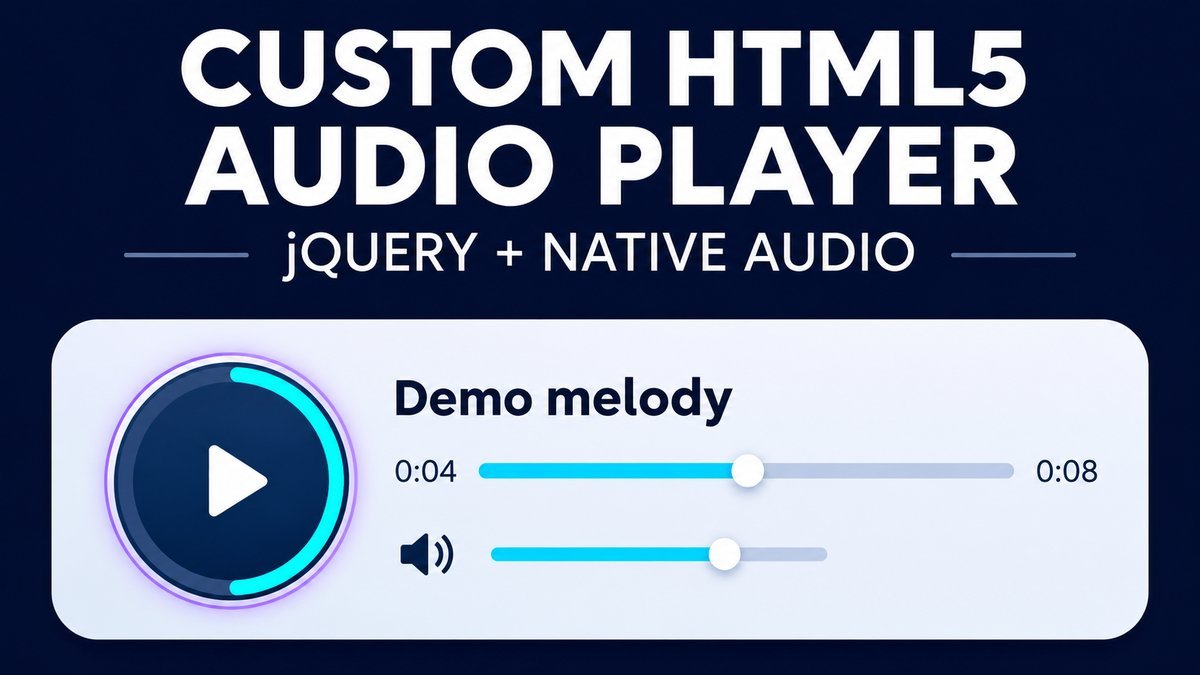
Customize an HTML5 audio player by keeping the native audio element as the playback engine and connecting labeled controls to its media API. jQuery can handle button and slider events, while CSS styles the player and its progress ring. No jPlayer or Flash component is needed for this example.
The demo includes play/pause, restart, a seek slider, mute and volume controls. It uses an original eight-second synthetic melody, starts only when you press Play, and retains native audio controls if enhancement is unavailable.
Try the custom audio player live demo
Custom audio player playground
Press Play to hear an original eight-second synthetic melody. Nothing starts automatically. The ring is a visual progress indicator; use the labeled seek slider to change position.
Demo melody
0:00 / 0:08
Loading audio metadata. Native controls remain available until enhancement is ready.
No speech is present: the sample is a short sequence of synthesized musical tones. Some mobile browsers use device volume instead of a page volume slider. If scripting fails, native audio controls remain available.
Keep the native audio element as the source of truth
A custom interface changes the controls, not the browser’s media engine. The audio element still loads the file, tracks its current position and reports playback events. The circular ring in this example only visualizes progress; the labeled seek slider is the interactive seeking control.
The MDN media-element reference documents properties such as currentTime, duration, paused, muted and volume. Use those values to update the interface rather than keeping a separate timer that can drift away from actual playback.
1. Start with a native audio fallback
<audio class="demo-audio" controls preload="metadata"
       aria-label="Demo melody">
  <source src="demo-melody.wav" type="audio/wav">
  Your browser does not support HTML audio.
</audio>
The controls attribute provides the browser’s own player before enhancement. Preloading metadata is a hint to load information such as duration without requesting automatic playback. Browser loading behavior may vary.
The MDN audio-element reference describes sources, native controls and format considerations. Serve your file with a correct media type and a URL the browser can load. Use HTTPS media on an HTTPS page and test your chosen codec on target browsers.
2. Add labeled buttons and native range inputs
<button type="button" class="play">Play</button>
<label for="seek">Seek position</label>
<input id="seek" type="range" min="0" max="8" step="0.1" value="0">
<button type="button" class="restart">Restart audio</button>
<button type="button" class="mute" aria-pressed="false">Mute audio</button>
<label for="volume">Volume</label>
<input id="volume" type="range" min="0" max="1" step="0.05" value="0.5">
These controls stay hidden until the audio has a usable finite duration. Buttons provide native Enter and Space activation, and range inputs provide keyboard adjustment without writing a custom drag handler. Keep visible labels connected to unique input IDs.
The seek range’s maximum must come from the loaded file, not a duration assumed from the design. The full source also gives the slider a readable time-based aria-valuetext. Volume uses values from zero to one, while its accessible value text is expressed as a percentage.
3. Handle the play promise and media events
$play.on('click', function () {
  if (!audio.paused) {
    audio.pause();
    return;
  }
  var result = audio.play();
  if (result) {
    result.catch(function () {
      $status.text('Playback did not start. Try Play again.');
    });
  }
});
$(audio).on('playing pause ended', updateControls);
The MDN play() reference explains that starting playback returns a promise that may reject. Calling play is a request, not proof that sound has started. The complete example changes the label from Play to Pause based on the actual paused property and relevant media events.
There is no autoplay. Restart pauses playback and resets the time to zero, leaving the user to press Play when ready. At the end of the file, the label returns to Play and a status explains that replay is available.
4. Update position and progress from the audio
$(audio).on('timeupdate seeked', function () {
  var duration = Number.isFinite(audio.duration) ? audio.duration : 0;
  var position = audio.currentTime;
  $seek.attr('max', duration).val(position);
  var degrees = duration > 0 ? 360 * position / duration : 0;
  ring.style.setProperty('--progress', degrees + 'deg');
});
$seek.on('input', function () {
  audio.currentTime = Number(this.value);
});
Guard against missing or nonfinite duration before calculating progress. A file can also reject a seek before enough information is available, so the full implementation catches seek failures and provides a clear message.
The elapsed-time readout updates visually without being a live announcement on every media tick. A separate polite status reports important changes such as playing, paused, muted or failed. This avoids repeatedly interrupting someone who is using a screen reader.
5. Draw the circular indicator with CSS
.progress-ring {
  --progress: 0deg;
  width: 116px;
  height: 116px;
  padding: 9px;
  border-radius: 50%;
  background: conic-gradient(#087c9b var(--progress), #dce6f4 0);
}
.play {
  width: 98px;
  height: 98px;
  border-radius: 50%;
  background: #183154;
  color: white;
}
The outer ring shows elapsed progress while the inner button controls playback. Keep the button’s accessible name explicit. Do not imply that the ring can be dragged unless you implement and test that interaction. In this example, seeking happens through the labeled native range input.
The ring is an extra cue. Elapsed time and the slider remain available if gradients or custom colors are unavailable. Forced-colors mode preserves the controls and focus indicators. There is no spinning decorative animation.
6. Implement mute and read back volume
$mute.on('click', function () {
  audio.muted = !audio.muted;
  $mute.attr('aria-pressed', audio.muted ? 'true' : 'false');
});
$volume.on('input', function () {
  audio.volume = Number(this.value);
  $(this).val(audio.volume);
});
Mute and volume are related but different properties. Muting keeps the chosen volume level so unmuting can restore it. The demo reads the actual volume property back into the slider instead of assuming a requested change succeeded.
Some mobile browsers rely on the device’s volume controls. Keep the user-facing note and test those environments; a desktop volume slider cannot guarantee identical system-volume behavior on every phone.
7. Preserve native controls when enhancement fails
The script waits for a finite positive duration before exposing the custom interface and hiding the native player. If the audio source fails, it restores native controls and displays an error message. If jQuery or the component script is absent, the initial native controls remain available.
The ZIP includes a script-free page and a deliberate missing-file fixture for checking these cases. Native controls cannot repair a missing media file, but a visible error and fallback are more useful than a custom Play button that silently does nothing.
Use appropriate audio and alternatives
The included sample is an original eight-second sequence of synthesized musical tones. It has no speech or third-party recording. The page describes that content in text. If you replace it with spoken instructions, interviews or other meaningful audio, provide the appropriate transcript or equivalent text content.
The WAV fixture is simple and portable for this short example. For production audio, evaluate supported compressed formats, file size, network delivery and the rights to distribute the recording. Styling does not remove those requirements.
Download and run the complete player
Extract the ZIP and open index.html. It includes HTML, CSS, JavaScript, the original WAV, fallback fixtures, a README and a local copy of jQuery 3.7.1 with its MIT license. The pinned dependency is for this tutorial and is not a claim about the latest release.
Load the local jQuery file before the component script in the standalone example. On WordPress, use its existing jQuery instance instead of a duplicate. For a maintained integration, enqueue assets through a theme or plugin and test the site’s content and media policies.
Common custom audio player problems
- The label says Pause but nothing plays: handle the play promise and update from media events.
- The seek range has an invalid maximum: wait for usable metadata and check duration.
- The ring drifts from the audio: calculate progress from currentTime rather than a separate interval.
- The audio file cannot load: check the actual URL, format, response type and HTTPS availability.
- The custom interface breaks keyboard use: use native buttons and range inputs with visible focus and labels.
Frequently asked questions
Does this player need jPlayer?
No. This rebuild uses the native HTML5 audio element and jQuery event handlers. It has no jPlayer or Flash dependency.
Can the progress ring be dragged?
No. It displays progress only. Use the Seek position slider to move through the sample.
Does Restart begin playing automatically?
No. It pauses and resets to the beginning. Press Play to start again.
Should I always replace native audio controls?
No. Native controls may be the better choice when they meet your needs. A custom player requires additional state, accessibility and browser testing.
Related tutorials
Continue with a CSS on/off switch or a moving slider with CSS and jQuery for more examples of native controls and user-managed state.