
Blog
Open an Image Popup on Link Click with jQuery

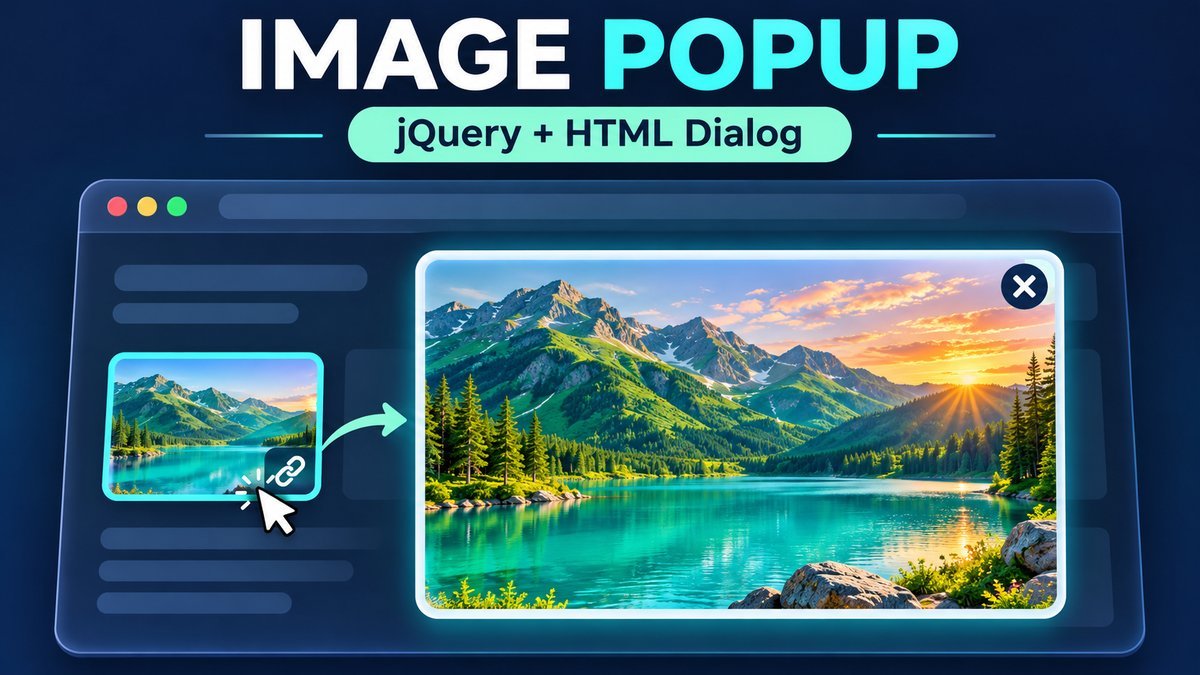
To open an image popup when a link is clicked with jQuery, bind a click handler to a real image link, prevent ordinary navigation, and call showModal() on a native HTML <dialog>. Put the image and a close button inside the dialog, and keep the link’s image URL as a fallback.
This tutorial replaces the older Fancybox example with a lightweight single-image preview. It supports a close button, Escape, backdrop clicks, and focus restoration without another lightbox plugin. The complete HTML, CSS, jQuery controller and sample illustration are available in the ZIP.
Live demo: image popup on link click
Open the sample illustration, then try the close button or Escape. Clicking the image keeps the dialog open; clicking outside its panel closes it. Keyboard users can activate the link with Enter.
Open an image in a popup
Click the link below to enlarge the sample tutorial illustration. Close it with ×, Escape, or a click outside the dialog panel.
Open image popupWithout JavaScript, jQuery, or dialog support, the link opens the image directly.
Image preview
The image could not be loaded. Close this dialog and try the direct image link.
Sample tutorial illustration. The image is contained within the viewport without cropping.
Why use an HTML dialog for an image popup?
A modal image preview needs more than a visible overlay. It needs a named close control, sensible keyboard focus, a way to dismiss it, and a readable image. Native dialog.showModal() places the dialog in the browser’s top layer and makes the surrounding page inert while it is open. MDN’s HTML dialog reference explains its modal and focus behavior.
| Requirement | Implementation |
|---|---|
| Open on click | A jQuery handler on a real image link. |
| Modal behavior | Native dialog.showModal(), rather than a CSS-only overlay. |
| Close control | A named button, Escape, and an explicit backdrop handler. |
| Image sizing | Viewport-limited dimensions with object-fit: contain. |
| Fallback | The link navigates to the image if enhancement is unavailable. |
1. Create a real link and a dialog
<a href="sample.jpg" id="open-image">Open image popup</a>
<dialog id="image-dialog" aria-labelledby="image-title">
  <h2 id="image-title">Image preview</h2>
  <button type="button" id="close-image"
          aria-label="Close image popup" autofocus>×</button>
  <img src="sample.jpg" alt="Describe the image content">
</dialog>
Use the actual image URL in href, not javascript:;. The unenhanced link remains useful if JavaScript, jQuery or dialog support is missing. Give the image meaningful alternative text and the dialog a heading. The full project also connects a caption with aria-describedby.
2. Open the image with a jQuery click handler
jQuery(function ($) {
  const dialog = document.querySelector('#image-dialog');
  if (typeof dialog.showModal !== 'function') return;

  $('#open-image').on('click', function (event) {
    if (event.ctrlKey || event.metaKey || event.shiftKey || event.altKey) return;
    event.preventDefault();
    event.stopImmediatePropagation();
    if (!dialog.open) dialog.showModal();
  });
  $('#close-image').on('click', function () {
    dialog.close();
  });
});
This excerpt matches the short markup above. The complete controller uses prefixed IDs, sets the popup image from the fixed link URL, locks page scrolling while open, and restores focus after closing. It leaves modified clicks to the browser so a visitor can still open the image link in another tab.
The jQuery .on() reference documents event binding and preventing a link’s default navigation. jQuery handles the events here; the modal behavior comes from the native dialog API. The handler also stops propagation after preventing navigation so this site’s delegated theme lightbox does not open a second preview.
3. Size the popup without cropping the image
dialog {
  width: min(900px, calc(100% - 32px));
  max-height: 90dvh;
  overflow: auto;
  border-radius: 16px;
}
dialog::backdrop { background: rgb(4 12 25 / 86%); }
dialog img {
  display: block;
  width: 100%;
  height: auto;
  max-height: 60dvh;
  object-fit: contain;
}
The full stylesheet includes viewport-height fallbacks and narrower-screen spacing. The image scales within the available space and retains its proportions. contain keeps the complete image visible; it does not add interactive zoom or pan. Short screens can scroll the dialog to reach its content.
4. Support close, Escape and backdrop clicks
The close button calls dialog.close(). A native modal dialog handles Escape through its cancel behavior. For backdrop dismissal, check both the event target and the click coordinates against the panel rectangle:
$(dialog).on('click', function (event) {
  if (event.target !== dialog) return;
  const rect = dialog.getBoundingClientRect();
  if (event.clientX < rect.left || event.clientX > rect.right ||
      event.clientY < rect.top || event.clientY > rect.bottom) {
    dialog.close();
  }
});
This avoids closing when someone clicks the image or empty space inside the panel. The complete project listens for the dialog’s close event to restore the prior inline body overflow setting and return focus to the opening link. It does not animate the popup.
Keyboard and image-loading behavior
The close button receives focus when the preview opens. Native modal behavior keeps focus within the dialog while it is open and makes the page behind it inert. Closing returns focus to the trigger. Test Tab, Shift+Tab, Escape and the close button in the browsers and assistive technology your audience uses; this sample is not a full accessibility audit.
If the image fails to load, the full controller hides the failed image and shows a message while retaining the close control. After closing, the original image link remains available. Use descriptive alternative text, an optimized source image, and a useful caption instead of relying on a filename alone.
Download and run the full project
Extract the ZIP and open index.html in a current browser. It includes the sample illustration, scoped styles, full controller, README and a local pinned jQuery 3.7.1 copy with its MIT license. No build, server, account or CDN is required. This version matches the site’s WordPress copy; it is not described as the latest release.
image-popup-demo/
├── index.html
├── style.css
├── script.js
├── README.md
├── assets/popup-sample.jpg
└── vendor/
    ├── jquery-3.7.1.min.js
    └── LICENSE-jquery.txt
To replace the sample illustration, update the image link, thumbnail source and alternative text, popup image alternative text, dimensions and caption together. The public article uses its uploaded image URL; the offline ZIP points to its bundled local JPEG.
WordPress and theme integration
Enqueue the controller using WordPress’s existing jquery dependency. Avoid loading jQuery twice. Keep the component’s IDs unique and do not add Fancybox or theme-lightbox attributes to the opening link if they would attach a second handler. Clear relevant page caches after updating the script.
This example manages one modal. If your site has several overlays or a shared scroll-lock manager, integrate with that manager so one component does not undo another’s scroll state. Test mobile scrolling on target devices; body overflow alone is not a promise of identical scroll locking everywhere.
Common image-popup problems
| Problem | Check |
|---|---|
| The link navigates directly to the image | Verify jQuery, the controller and native dialog support. Direct navigation is the intended fallback. |
| Two lightboxes open | Remove competing plugin/theme handlers from this trigger. |
| The image is cropped | Remove fixed crop rules and use contain sizing. |
| The close button is hard to find | Use a visible button with a descriptive accessible name and clear focus outline. |
| The page stays locked after closing | Restore scroll styles in the dialog close event, including Escape-driven closure. |
| The popup opens but the image fails | Check the source URL, file permissions and image-loading policy. |
Frequently asked questions
Do I need Fancybox to open an image popup?
No. A single image preview can use a native HTML dialog with jQuery event handlers. A gallery library may be useful when you need navigation, zoom or other advanced controls.
Is this a new browser window?
No. It is a modal dialog within the current page. It does not use window.open or require a popup-window permission.
Why does the link have a real image URL?
It provides a direct-image fallback when the modal enhancement is unavailable and preserves normal modified-click behavior.
How do I close the popup with Escape?
Open it with showModal so the browser supplies native modal cancel behavior. Keep the separate close button available too.
Can I turn this into an image gallery?
Yes, but navigation, current-image state, captions and keyboard behavior need additional design. The downloadable project intentionally previews one image.
Does the demo upload or save anything?
No. It displays a static sample asset and keeps no user data or persistent state.
Try the image popup and inspect its source
Open and close it repeatedly, try keyboard dismissal and backdrop clicks, then use the ZIP as a starting point for your own single-image preview.