

Blog
Auto Hide Alert Box with Bootstrap and jQuery

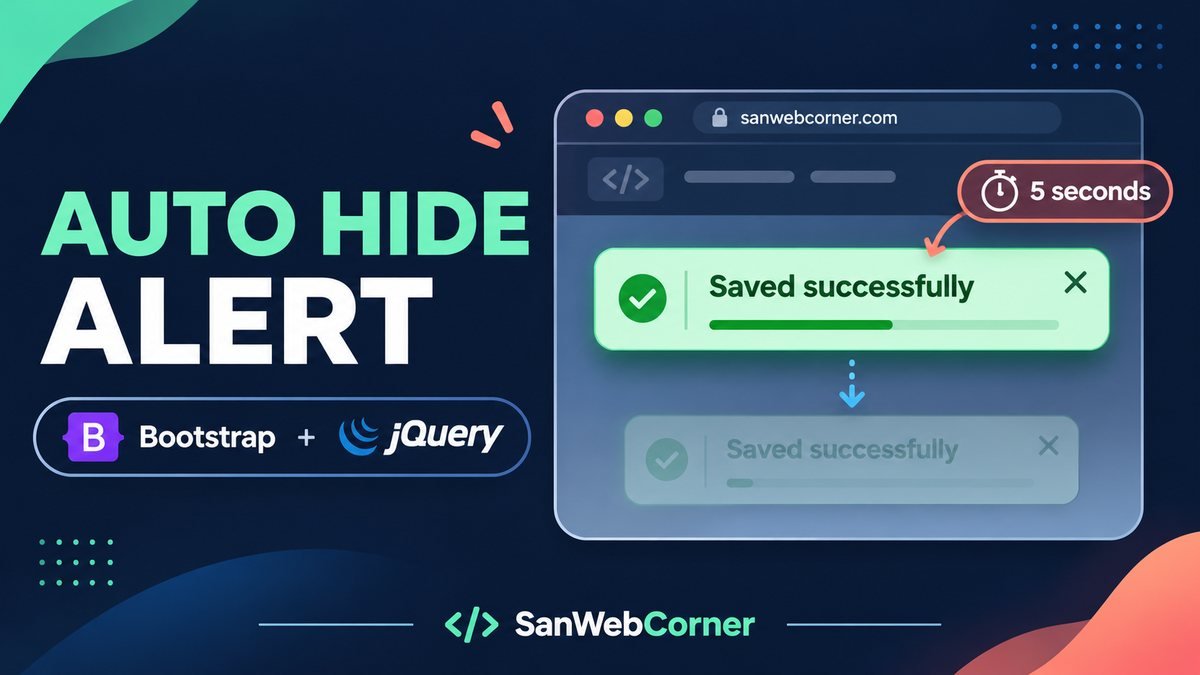
To auto-hide a Bootstrap alert, start a JavaScript timer after showing it and close or hide the message when that timer finishes. With Bootstrap 5, call bootstrap.Alert.getOrCreateInstance(element).close(). On a page already using jQuery, fadeOut() can hide a reusable message.
This tutorial covers both approaches, explains the difference between removing and hiding an alert, and includes a working demo with configurable timing, manual dismissal, and reading pauses.
Which auto-hide method should you use?
| Approach | What happens | Good fit |
|---|---|---|
| Bootstrap Alert close() | Closes and removes the alert element. | A dismissible message that you recreate when needed. |
| jQuery fadeOut() | Hides an existing element after an effect. | A reusable message on a page that already loads jQuery. |
| Bootstrap Toast | Provides delay and autohide options. | Short, non-critical notifications. |
Try the auto-hide alert demo
Choose a delay and show a sample notification. Repeated clicks restart its timer. Hover over the message, focus its close button, or select Pause timer to keep it visible longer. Turn off Hide automatically for manual dismissal.
The embedded preview uses scoped CSS and plain JavaScript so it does not load Bootstrap over this blog’s theme. The ZIP also includes separate pages using actual Bootstrap and jQuery.
Show it. Read it. Dismiss it.
Create a non-critical demo notification. Its timer pauses while you hover over the message or focus its close button.
No notification is visible. Select Show notification to begin.
Ready. Repeated Show clicks restart one timer.
Enable JavaScript to try this notification demo.
1. Add a dismissible Bootstrap 5 alert
Load the Bootstrap CSS and JavaScript for the version used by your project. Add the dismissible classes and a close button with data-bs-dismiss="alert". Bootstrap 5 uses the data-bs- prefix.
<div id="notice" class="alert alert-success alert-dismissible fade show">
  <strong>Saved.</strong> Your sample change is complete.
  <button type="button" class="btn-close"
          data-bs-dismiss="alert" aria-label="Close"></button>
</div>
2. Close the alert after a delay
Pass a function to setTimeout(). A delay of 5000 requests a five-second wait before running that function. The callback may run later if the browser is busy or throttling a background tab.
const element = document.querySelector('#notice');
const alert = bootstrap.Alert.getOrCreateInstance(element);
const timer = setTimeout(() => alert.close(), 5000);
element.addEventListener('close.bs.alert', () => clearTimeout(timer));
Bootstrap’s Alert documentation confirms that closing removes the element. Create a new alert for a later notification. If the close button had keyboard focus, use closed.bs.alert to move focus to a sensible control.
3. Auto-hide an alert with jQuery
If jQuery is already part of the page, clear the previous timeout, stop queued effects, and show the element before scheduling its fade. This example uses Bootstrap CSS for appearance and jQuery for behavior; it does not call the Bootstrap alert plugin.
let timer;
const notice = $('#notice');
$('#show-notice').on('click', function () {
  clearTimeout(timer);
  notice.stop(true, true).show();
  timer = setTimeout(function () {
    notice.fadeOut(200);
  }, 5000);
});
Use the full jQuery build for effects. The fadeOut() documentation explains its duration and completion callback; stop() can stop a running animation and clear its queue. The complete comparison page also handles manual closing and reduced-motion preferences.
Why repeated clicks can hide a new message too early
Every Show action can create another timeout. Unless you cancel the old one, its callback may hide the latest message before the new delay finishes. Store the timer ID and call clearTimeout() before starting another timer.
In the standalone demo, a paused timer retains its remaining time. Hover and keyboard focus are tracked separately, so leaving the mouse does not restart the countdown while the close button still has focus.
When a Bootstrap Toast is a better choice
A Toast has built-in autohide and delay options. Use it for brief feedback that does not require the visitor to act:
const toast = bootstrap.Toast.getOrCreateInstance(
  document.querySelector('#saved-toast'),
  { autohide: true, delay: 5000 }
);
toast.show();
Bootstrap’s Toast guidance distinguishes non-critical notifications from important process errors. Give people sufficient reading time and keep required actions available.
Accessibility and timing
Do not make users race a short timer to read a validation error or complete an action. Keep important messages visible, provide a close control, and offer a way to stop automatic hiding. The demo uses a polite status region for non-critical updates and hides its moving countdown bar when reduced motion is requested.
For form errors that should remain beside their fields, see the live JavaScript form validation tutorial.
Common mistakes and fixes
| Problem | Fix |
|---|---|
| The alert closes immediately. | Pass a callback, not the result of calling close(). |
| The message cannot be shown again. | Bootstrap removed it; create a new element, or use a hide-and-show approach. |
| Repeated clicks cause unexpected timing. | Clear the previous timeout and animation queue. |
| fadeOut is unavailable. | Check that the full jQuery build loaded before your script. |
| fadeTo behaves unexpectedly. | Its opacity argument is between 0 and 1; its duration is not a separate waiting period. |
Download and run the complete examples
Extract the ZIP and open index.html for the offline demo. Open bootstrap-alert.html or jquery-alert.html for the framework comparison pages; those two load CDN assets and need an internet connection. Setup and behavior differences are documented in the README.
Frequently asked questions
How do I hide a Bootstrap alert after five seconds?
Start a 5000-millisecond timeout after showing the alert and call its close method in the callback. Clear that timer if the alert is dismissed earlier.
Does Bootstrap 5 require jQuery for alerts?
No. Use Bootstrap 5’s native JavaScript Alert API. Use jQuery effects only when you intentionally choose that approach.
What is the difference between close() and fadeOut()?
Bootstrap close removes the alert from the document. jQuery fadeOut hides the element so it can be shown again.
Can I stop automatic hiding?
Yes. Clear the pending timeout and keep the message visible. The demo includes both a pause control and a setting to disable auto-hide.
Should validation errors disappear automatically?
Keep errors available until they are corrected or appropriately dismissed. Auto-hide is better suited to short, non-critical feedback.
Conclusion
A predictable auto-hide alert needs one timer, a clear dismissal path, and enough reading time. Choose Bootstrap’s close behavior when removing messages, jQuery when reusing an existing element, or Toasts when their built-in notification options fit.