

Blog

How to Build a Responsive Reservation Form with HTML, CSS, and JavaScript
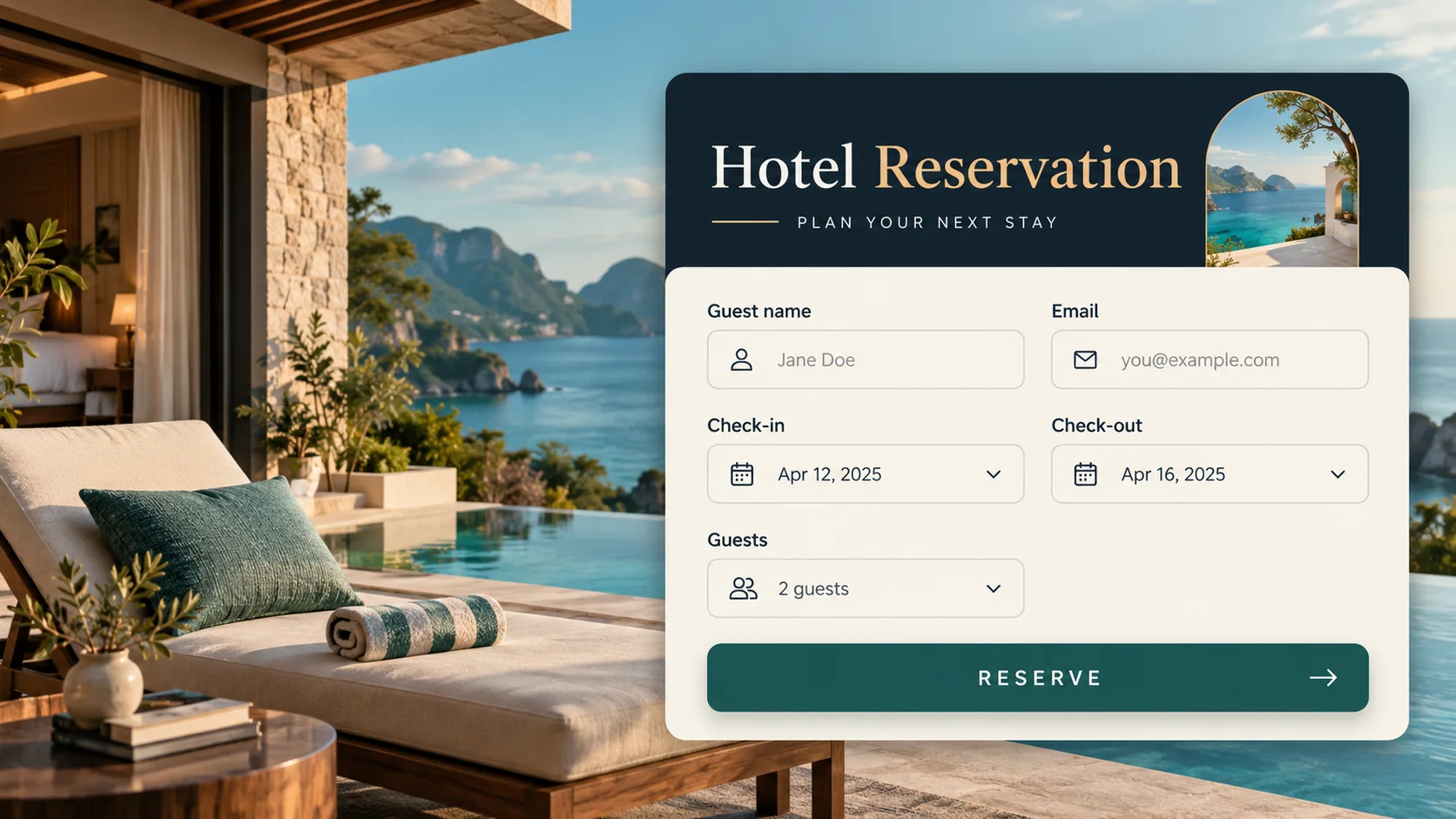
A reservation form should be quick to complete on a phone, easy to navigate with a keyboard, and clear about what happens after submission. In this tutorial, you will build a responsive hotel-style form with labeled fields, date validation, and an interactive front-end demo.
Quick answer: Use semantic HTML controls and labels, CSS Grid for a layout that adapts to small screens, and JavaScript to check that the departure date follows the arrival date. A real booking still needs a secure server or booking service; this example only shows a local confirmation.
Try the live demoDownload source code
What you’ll build
The form collects a guest’s name, email address, arrival date, departure date, and party size. Required fields use built-in browser validation. JavaScript adds the date relationship check and displays an accessible status message. This learning example does not store, email, or transmit guest details.
1. Create the form structure with HTML
Start with a semantic <form> and a visible <label> for each input. Connect each label to its control using matching for and id values. Email and date input types provide suitable mobile keyboards and date pickers. Keep the submit button enabled so the browser can explain which required field needs attention.
2. Make the layout responsive with CSS
Use a two-column CSS Grid on wider screens and change to one column on narrow screens. Set grid items to min-width: 0 and let controls fill their available width to avoid horizontal overflow. Keep a visible keyboard focus outline. Scope styles to the form’s own class names so the demo does not unexpectedly change other theme buttons, forms, or headings.
3. Validate dates with JavaScript
Set today as the earliest arrival date and update the departure field’s minimum whenever arrival changes. Before showing a demo confirmation, compare both date values and require departure to be later. Client-side validation improves usability but is not a security boundary. A production server must repeat validation before processing a real reservation.
Try the reservation form
Enter sample details and choose arrival and departure dates in the demo below. It validates dates in your browser and shows a local confirmation. Use fictional information only: this page does not create a reservation or send form data anywhere.
Accessibility and production checklist
- Use visible labels associated with their inputs; do not rely on placeholders as labels.
- Mark required fields in both the interface and HTML and explain date requirements in plain language.
- Keep keyboard focus visible and announce dynamic feedback with a suitable status region.
- For real bookings, submit over HTTPS to a trusted server or booking service, validate again on the server, and set clear privacy and retention rules.
- Check narrow screens, keyboard navigation, invalid dates, and browser autofill before launch.
Common questions
Does this form save a booking?
No. The demo only shows a confirmation in the browser. Connect the form to a booking API or server before accepting real reservations.
Why validate dates in JavaScript if HTML has date fields?
Native date inputs help select valid calendar dates. JavaScript checks the relationship between them: departure must come after arrival. A server should enforce the same rule when processing a real booking.
Can I adapt this form for a restaurant or appointment?
Yes. Change the fields to fit the use case. Real-time availability, time slots, notifications, and confirmation records need a backend or booking service.
Summary
This responsive reservation form combines accessible HTML, flexible CSS Grid styling, and lightweight JavaScript date checks. Download the files to explore the implementation, then connect a secure backend if you need to accept real reservations.
Reservation request demo
Try this responsive form with sample details. It validates dates in your browser; no booking is created and no personal information is sent or saved.
<form class="reservation-form" action="/reservations" method="post">
  <div class="form-grid">
    <div class="field">
      <label for="guest-name">Full name</label>
      <input id="guest-name" name="name" autocomplete="name" required>
    </div>
    <div class="field">
      <label for="guest-email">Email address</label>
      <input id="guest-email" name="email" type="email" autocomplete="email" required>
    </div>
    <div class="field">
      <label for="arrival">Check-in date</label>
      <input id="arrival" name="arrival" type="date" required>
    </div>
    <div class="field">
      <label for="departure">Check-out date</label>
      <input id="departure" name="departure" type="date" required>
    </div>
    <div class="field">
      <label for="guests">Guests</label>
      <input id="guests" name="guests" type="number" min="1" max="12" value="2" required>
    </div>
  </div>
  <button type="submit">Request reservation</button>
</form>.reservation-form { max-width: 680px; margin-inline: auto; }
.form-grid { display: grid; grid-template-columns: repeat(2, minmax(0, 1fr)); gap: 1rem; }
.field { min-width: 0; }
.field label { display: block; margin-bottom: .4rem; font-weight: 600; }
.field input { box-sizing: border-box; width: 100%; min-height: 2.8rem; padding: .65rem .75rem; border: 1px solid #cbd5e1; border-radius: .5rem; font: inherit; }
.field input:focus-visible, .reservation-form button:focus-visible { outline: 3px solid #73c8cc; outline-offset: 2px; }
.reservation-form button { margin-top: 1.25rem; padding: .8rem 1.2rem; border: 0; border-radius: .5rem; background: #087f8c; color: #fff; font: inherit; font-weight: 700; cursor: pointer; }
@media (max-width: 600px) { .form-grid { grid-template-columns: 1fr; } }const form = document.querySelector('.reservation-form');
const checkIn = form.querySelector('#arrival');
const checkOut = form.querySelector('#departure');
function localDateInputValue(date = new Date()) {
const local = new Date(date.getTime() - date.getTimezoneOffset() * 60000);
return local.toISOString().slice(0, 10);
}
const today = localDateInputValue();
checkIn.min = today;
checkOut.min = today;
checkIn.addEventListener('change', () => {
checkOut.min = checkIn.value || today;
if (checkOut.value && checkOut.value <= checkIn.value) checkOut.value = '';
});
form.addEventListener('submit', (event) => {
if (checkOut.value <= checkIn.value) {
event.preventDefault();
checkOut.setCustomValidity('Choose a check-out date after check-in.');
checkOut.reportValidity();
return;
}
checkOut.setCustomValidity('');
// Connect the production form to a secure booking server or API.
});