
Blog

Animated Add to Cart Button with HTML, CSS, and JavaScript
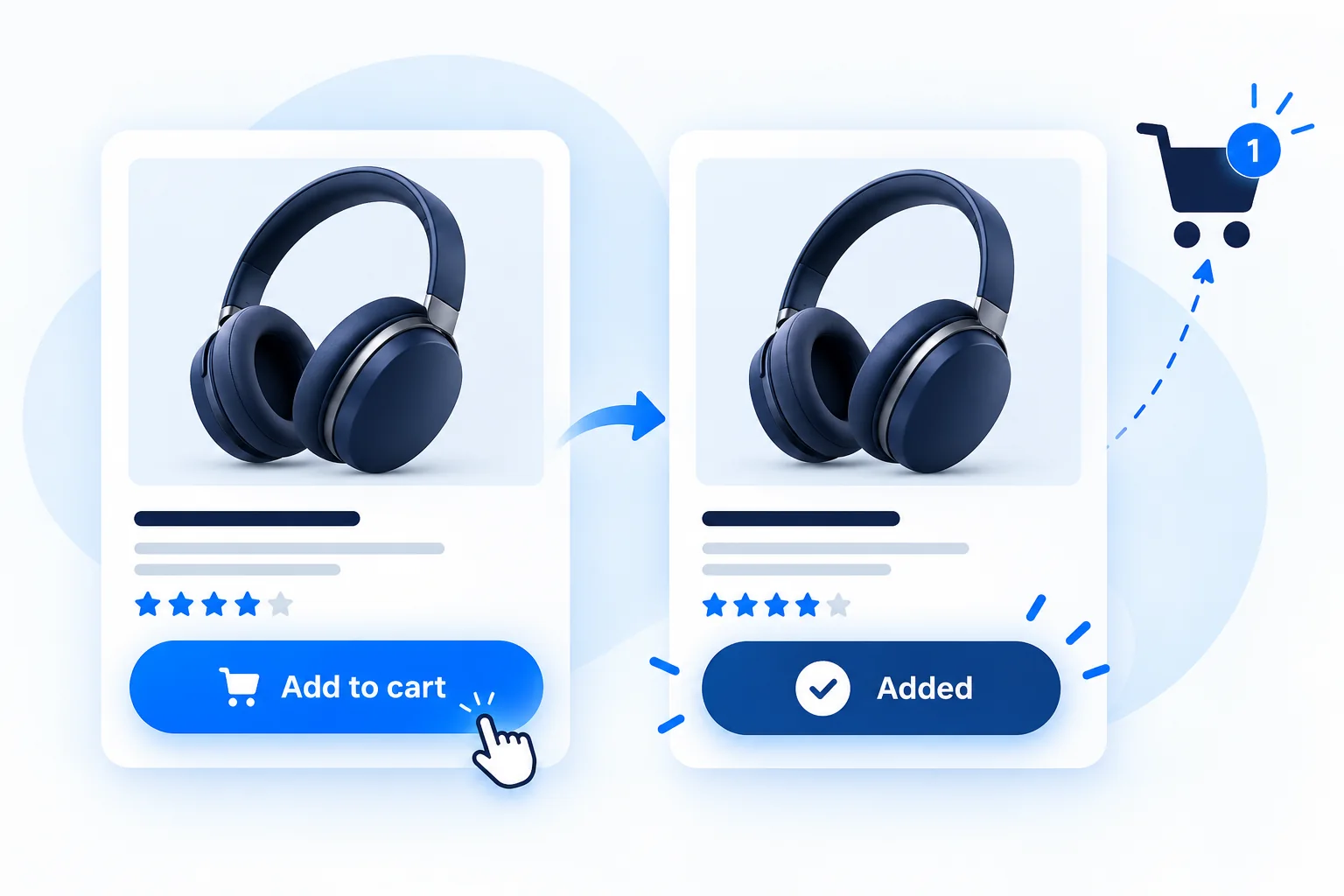
An animated add-to-cart button gives shoppers clear feedback after they choose a product. In this tutorial, you will build a responsive product card and button with HTML, CSS, and vanilla JavaScript. Click the demo to see the button change to an “Added” state; the downloadable files contain the complete example.
Quick answer: create a real <button> element, animate its visual state with a CSS class, and update its accessible label and status text with JavaScript. This example is a front-end demo only; it does not add products to a real cart or process orders.
View Live DemoDownload Source Code
What you will build
The example is a small wireless-headphones product card with a price and an “Add to cart” button. When clicked, the button changes color, displays a check mark, and announces the update to assistive technology. It automatically returns to its initial state after a short pause.
How the add-to-cart animation works
- HTML defines the product and controls. Use a native button so keyboard users can activate it with Enter or Space.
- CSS styles both states. The
.is-addedclass controls the confirmation color and icon animation. - JavaScript toggles the state. A click handler changes the class, accessible label, and live status message, then resets the demo.
Step 1: Add the product card markup
Put the product information and button inside a card. The button has a descriptive accessible name, and the separate status region announces the result without moving keyboard focus.
HTML code
Add the HTML snippet below to your page. Keep the button’s type="button" when it is inside a form so it does not submit the form unexpectedly.
Step 2: Style the button and confirmation state
Use a clear contrast between the default blue button and the green confirmation state. The CSS also includes a visible keyboard focus outline, a narrow-screen layout, and a reduced-motion preference.
CSS code
These styles are scoped to the demo’s classes. Adapt the colors and spacing to match your store’s design system.
Step 3: Add the JavaScript interaction
The script updates the visible text and accessible label together. The live region explains that this is only a demo; a production store should call its cart API and reflect the server’s confirmed result.
JavaScript code
Try the live demo
Click “Add to cart” to preview the animation. Click again to toggle the state, or wait for it to reset. No order is created, and no payment information is collected.
Connect the button to a real shopping cart
The example only changes the interface. For a real store, connect the click handler to your platform’s cart endpoint or supported cart API. Handle loading and error states, prevent duplicate requests, and update the cart count only after the server confirms success. Do not treat a front-end animation as proof that an order was placed.
Accessibility and mobile tips
- Keep the control as a native
<button>and retain a visible:focus-visibleoutline. - Use a clear label such as “Add Wireless Headphones to cart” and announce the result in a polite live region.
- Make the button large enough to tap and ensure text and controls remain readable on narrow screens.
- Respect
prefers-reduced-motionso motion-sensitive visitors can use the control comfortably.
Frequently asked questions
Does this example add an item to WooCommerce?
No. It is a standalone front-end demo. Connect the button to WooCommerce or your chosen cart API before using it on a live store.
Can I use the animation with another product?
Yes. Change the product name, description, and price in the HTML, then update the button’s accessible label and the JavaScript messages to match.
Why use a button instead of a link?
Adding an item changes application state, so a button is the appropriate control. Use a link for navigation, such as opening a product details page.
Download the complete example
Download the ZIP to get the standalone HTML, CSS, JavaScript, and README. Extract the files into one folder and open index.html in a browser to run the demo locally.
<article class="product-card" aria-label="Wireless headphones product demo">
  <div class="product-art" aria-hidden="true">
    <span class="headphones">◖⌒◗</span>
  </div>
  <div class="product-copy">
    <p class="product-kicker">AUDIO</p>
    <h2>Wireless Headphones</h2>
    <p class="product-description">
      Comfortable sound for work, travel, and everyday listening.
    </p>
    <p class="price">$79.00</p>
    <button class="add-button" type="button"
      aria-label="Add Wireless Headphones to cart"
      aria-describedby="cart-status">
      <span class="button-label">Add to cart</span>
      <span class="button-check" aria-hidden="true">✓</span>
      <span class="cart-icon" aria-hidden="true">
        <span class="cart-basket"></span>
        <span class="cart-wheel wheel-one"></span>
        <span class="cart-wheel wheel-two"></span>
      </span>
    </button>
    <p class="cart-status" id="cart-status" role="status" aria-live="polite">
      Demo only. This button does not submit an order.
    </p>
  </div>
</article>.product-card {
display: grid;
grid-template-columns: minmax(0, 1fr) minmax(0, 1.1fr);
overflow: hidden;
border: 1px solid #dce4f0;
border-radius: 24px;
background: #fff;
box-shadow: 0 20px 55px rgb(24 35 56 / 10%);
}
.product-art {
display: grid;
min-height: 330px;
place-items: center;
background: radial-gradient(circle, #fff 25%, #e7f1ff 26% 65%, #d7e7ff);
}
.product-copy { padding: 34px; }
.product-description, .cart-status { color: #53627a; line-height: 1.6; }
.price { margin: 22px 0 14px; font-size: 1.6rem; font-weight: 800; }
.add-button {
position: relative;
display: inline-flex;
min-width: 190px;
min-height: 54px;
align-items: center;
justify-content: center;
overflow: hidden;
padding: 14px 22px;
border: 0;
border-radius: 14px;
color: #fff;
background: #2457d6;
cursor: pointer;
transition: background .2s ease, transform .2s ease;
}
.add-button:hover { background: #1746bd; transform: translateY(-2px); }
.add-button:focus-visible { outline: 3px solid #172554; outline-offset: 4px; }
.button-label, .button-check { transition: opacity .2s ease, transform .25s ease; }
.button-check { position: absolute; left: 50%; opacity: 0; transform: translate(-50%, 12px) scale(.6); }
.add-button.is-added { background: #176b4b; }
.add-button.is-added .button-label { opacity: 0; transform: translateY(-12px); }
.add-button.is-added .button-check { opacity: 1; transform: translate(-50%, 0) scale(1); }
.cart-icon { transition: transform .45s ease; }
.add-button.is-added .cart-icon { transform: translate(62px, -28px) scale(.45); opacity: 0; }
@media (max-width: 620px) {
.product-card { grid-template-columns: 1fr; }
.product-art { min-height: 210px; }
.product-copy { padding: 24px; }
}
@media (prefers-reduced-motion: reduce) {
*, *::before, *::after { transition-duration: .01ms !important; animation-duration: .01ms !important; }
}const addButton = document.querySelector(".add-button");
const cartStatus = document.querySelector("#cart-status");
let resetTimer;
addButton?.addEventListener("click", () => {
const added = addButton.classList.toggle("is-added");
addButton.setAttribute(
"aria-label",
added ? "Wireless Headphones added to demo cart" : "Add Wireless Headphones to cart"
);
addButton.querySelector(".button-label").textContent = added ? "Added" : "Add to cart";
cartStatus.textContent = added
? "Wireless Headphones added to the demo cart. No order was submitted."
: "Demo only. This button does not submit an order.";
window.clearTimeout(resetTimer);
if (added) {
resetTimer = window.setTimeout(() => {
addButton.classList.remove("is-added");
addButton.setAttribute("aria-label", "Add Wireless Headphones to cart");
addButton.querySelector(".button-label").textContent = "Add to cart";
cartStatus.textContent = "Demo only. This button does not submit an order.";
}, 2400);
}
});Animated add-to-cart button demo
Click the button to preview its confirmation state. This is a visual demo and does not add an item to a store or submit an order.
AUDIO
Wireless Headphones
Comfortable sound for work, travel, and everyday listening.
$79.00
Demo only. This button does not submit an order.
No order is created and no payment information is collected.