

Blog
Display Form Data Before Submit with JavaScript

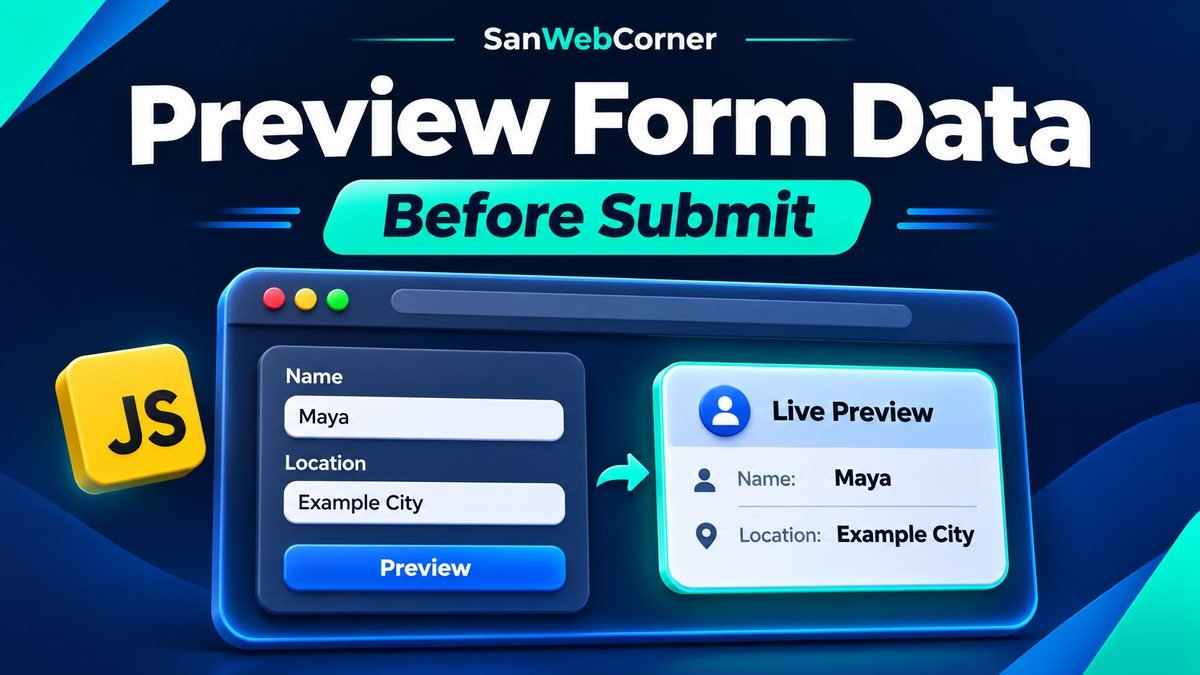
To display form field data before submit, listen for an input event, read the field’s value, and write it into a preview element with textContent. The preview can update a greeting, a label, or a review card while the visitor types, without sending the form.
This tutorial builds a live form preview with a personalized location question, a review card, optional contact details, validation, and reset controls. The main example uses plain JavaScript; a short jQuery alternative is included below.
The basic pattern: input value to preview text
<label for="first-name">First name</label>
<input id="first-name" type="text">
<p>Hello <span id="name-preview">there</span>, where are you based?</p>

<script>
const input = document.querySelector('#first-name');
const preview = document.querySelector('#name-preview');

function updatePreview() {
  preview.textContent = input.value.trim() || 'there';
}
input.addEventListener('input', updatePreview);
updatePreview();
</script>
As the name changes, the preview changes. Calling the renderer once also sets the initial display. MDN’s input event reference explains when the event fires and notes that assigning a value in JavaScript does not fire it automatically.
Live demo: display form data before submit
Type, paste, or load the sample details to update the preview. Try an incomplete name or an invalid optional email, then select Validate demo to see why a preview is different from validation.
Preview your form entries
Type or paste sample details. The label and preview update locally; no entries are sent or saved by this demo.
Enable JavaScript to load the interactive preview.
Live preview
- Name
- Not entered
- Location
- Not entered
- Email address
- Not provided
- Topic
- General enquiry
- Message
- Not provided
Previewing and validating are separate actions. This card can display incomplete or invalid entries.
Ready. Nothing has been sent.
JavaScript is required for the live preview. This demonstration has no submission endpoint.
Which event should update a form preview?
| Event or action | Useful behavior |
|---|---|
input |
Updates text previews as users edit, including typing and pasting. |
change |
Handles committed changes, including select choices. |
keyup |
Tracks a keyboard key release; does not represent every way a field can change. |
| Programmatic value assignment | Call your preview function after setting values. |
| Reset | Refresh the preview after restoring the form’s defaults. |
The original name-to-location concept works well with a shared renderer. In the complete example, the form listens for both input and change, while the sample and reset buttons refresh the preview directly.
1. Keep labels and preview targets separate
Give each field an explicit label and a stable ID. Use a separate text node or preview element for the changing value, so updating a name does not remove an input, label, or help text.
<label for="city">Location</label>
<input id="city" name="city" type="text">

<dl>
  <dt>Location</dt>
  <dd id="city-preview">Not entered</dd>
</dl>
A definition list is useful for a compact field-and-value review. The demo also uses plain text in a personalized question above the location label, preserving the label’s relationship with its input.
2. Use textContent for visitor-provided values
Read the input’s value and assign it as text. Avoid constructing HTML from a visitor’s answers:
const city = document.querySelector('#city');
const cityPreview = document.querySelector('#city-preview');

city.addEventListener('input', function () {
  cityPreview.textContent = city.value.trim() || 'Not entered';
});
MDN’s textContent reference describes text insertion and contrasts it with parsing HTML. If someone enters <b>Maya</b>, the preview should show those characters as text. It should not turn them into bold markup.
For multi-line messages, keep using text content and apply white-space: pre-wrap to the output. Add overflow-wrap: anywhere so long strings do not break a narrow layout.
3. Update several fields with one renderer
Use a fixed list of fields and preview targets. Keep the selectors scoped to the demo container, so this code does not affect the website’s search, newsletter, or comment forms.
const root = document.querySelector('#my-preview-form');
const keys = ['name', 'city', 'email'];

function render() {
  keys.forEach(function (key) {
    const field = root.querySelector('[name="' + key + '"]');
    const target = root.querySelector('[data-preview="' + key + '"]');
    target.textContent = field.value.trim() || 'Not provided';
  });
}

root.addEventListener('input', render);
root.addEventListener('change', render);
This excerpt assumes the matching fields and targets already exist. The ZIP includes the full markup, renderer, sample data button, and reset logic. The topic select displays its chosen label because its option values match those labels.
4. Separate previewing, validating, and submitting
A live review card shows what the visitor entered. It does not prove the data is complete, valid, or accepted by a server. The demo deliberately allows incomplete values in the preview and validates only when the visitor selects Validate demo or presses Enter in a text input.
| Action | What it means here |
|---|---|
| Preview | Reflect current values as text in the browser. |
| Validate | Check required name/location and optional email syntax. |
| Submit | No submission occurs in this demo. |
form.addEventListener('submit', function (event) {
  event.preventDefault();
  // Validate fields and display feedback here.
  // This learning demo does not send a request.
});
Handle the form’s submit event rather than only a button click, so keyboard submission follows the same path. MDN’s submit event documentation covers this form-level behavior.
For a real website, send the validated data to your own backend, validate it again there, and show success only when the server confirms it. The downloadable demo has no PHP mail handler, database, or endpoint. Do not add secrets, passwords, or payment information to a public review card.
jQuery alternative for an existing jQuery project
If your page already uses jQuery, the same name-preview behavior can use .on(), .val(), and .text():
const $name = jQuery('#first-name');
function renderName() {
  jQuery('#name-preview').text($name.val().trim() || 'there');
}
$name.on('input change', renderName);
renderName();
The jQuery .text() reference documents setting text content. The standalone download uses native JavaScript and requires no jQuery dependency. Avoid loading a second jQuery copy if your site already provides one.
Run the complete form preview project
Extract the ZIP and open index.html in a modern browser. All assets are local; no build step or server is required.
form-data-preview-demo/
├── index.html
├── style.css
├── script.js
└── README.md
The layout places the form beside its review card on wider screens and stacks them on smaller screens. Every field has a label, errors are associated with the relevant inputs, and validation focuses the first invalid field. The preview is not one large live region announcing every keystroke; a separate status reports validation and reset results.
Common preview problems and fixes
| Problem | Fix |
|---|---|
| Pasted text does not appear | Use input rather than only keyup. |
| A sample button changes inputs but not the preview | Call the renderer after assigning the sample values. |
| Reset leaves old preview values | Refresh the preview after resetting the controls. |
| Markup is interpreted in the preview | Insert answers with textContent or jQuery .text(). |
| Invalid input appears in the review card | That is expected until validation runs; show separate validation feedback. |
| The script changes another form | Use unique IDs and scope queries to your form container. |
Frequently asked questions
Can I show a field value before clicking Submit?
Yes. Listen for the input event and update another element in the same page. No server request is required.
Can I display the name inside a question or label?
Yes. Put the name in its own span or text element, then update only that element. Keep the input’s accessible label clear.
Does a preview validate the form?
No. A preview reflects the current value. Validation is a separate set of checks, and a real backend must also validate incoming data.
Does this demo save or email the entries?
No. Its script uses page memory only and sends no form request. Browser autofill and session restoration are separate browser features.
Can I preview a textarea or select value?
Yes. Read each control’s value and render it into a text element. Preserve line breaks with CSS when appropriate.
How can I build a separate review step?
Use the same renderer when entering the review step, and re-render after edits. The HTML multi-step form tutorial shows Back/Next navigation and a final review screen.
Try the live preview and source code
Test typing, pasting, clearing fields, Unicode, markup-like text, line breaks, validation, and reset. Download the complete project to adapt the behavior to your own form.