

Blog
jQuery Autocomplete Without a Database Using a Local Array

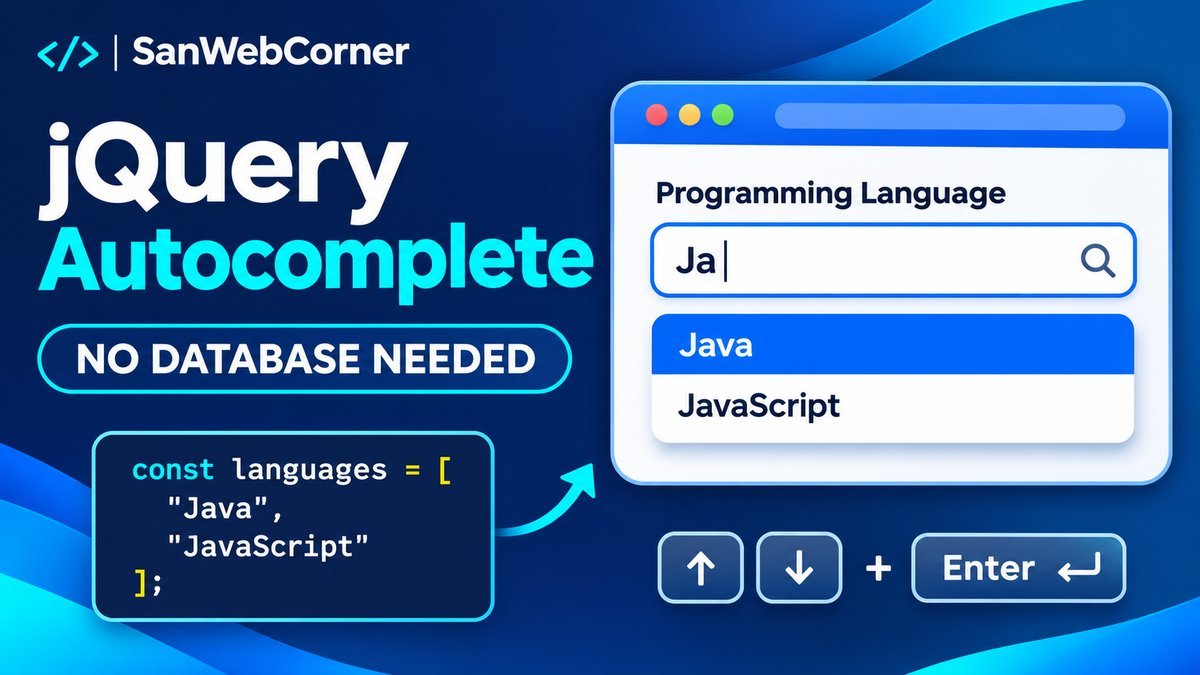
To create autocomplete without a database, store suggestions in a JavaScript array, filter that array as the user types and display the matching values below the input. jQuery can handle input events, update the suggestion list and copy a selected value into the field. No PHP, database connection or AJAX request is needed for a small local list.
This example builds a custom jQuery autocomplete for programming languages. It includes keyboard selection, clickable suggestions, a no-results message and a Clear button. It uses jQuery core rather than the jQuery UI widget, and the ZIP bundles the files needed to run locally.
Live demo: autocomplete from a local array
Find a programming language
Type ja, py or c++ to search a small local array. Suggestions match any part of a name, without regard to letter case.
Type at least one character. With suggestions open, use Up/Down then Enter to choose, or click a suggestion. Escape dismisses. Custom text is allowed.
JavaScript is required for suggestions; you can still type a value.
No suggestion selected.
Suggestions need JavaScript. This remains an ordinary text input without it.
The demo does not submit, save or send your input. Its suggestion list is included in the downloaded code.
How local autocomplete works
The complete suggestion dataset is already in the browser. Each input event reads the current query, normalizes its case, filters the array and renders matching labels. Selecting an option changes the input value; it does not submit or save anything.
This is suitable for a small public list such as language names, categories or fixed tags. Every value in client-side code can be inspected by visitors, so do not include private records or credentials. For large or frequently changing datasets, design a server API instead of shipping the entire dataset to the browser.
1. Create a labeled input and suggestion list
Use a visible label, concise keyboard instructions and a separate listbox. The script adds the combobox behavior only after initialization, leaving an ordinary usable input when JavaScript is unavailable.
<label for="language">Programming language</label>
<input id="language" type="text" autocomplete="off"
       aria-describedby="language-help">
<p id="language-help">Type a name, then use Up/Down and Enter.</p>
<ul id="language-options" role="listbox"
    aria-label="Programming language suggestions" hidden></ul>
<p role="status" aria-live="polite"></p>
The complete ZIP uses unique component IDs and scoped styles. Its popup is a list of suggestions, not a navigation menu. Custom text remains allowed; choosing a suggestion is optional.
2. Define and filter the local array
Keep the dataset outside the input handler so it is not recreated for every keystroke. This example uses case-insensitive substring matching, which finds a query anywhere in a name rather than only at the start.
const languages = [
  'C', 'C++', 'C#', 'CSS', 'Go', 'HTML', 'Java', 'JavaScript',
  'Kotlin', 'Lua', 'Perl', 'PHP', 'Python', 'R', 'Ruby',
  'Rust', 'Scala', 'SQL', 'Swift', 'TypeScript'
];
const term = input.value.trim().toLowerCase();
const matches = languages.filter(name =>
  name.toLowerCase().includes(term)
);
Typing “JA” finds Java and JavaScript. Typing “script” finds JavaScript and TypeScript. Punctuation is matched literally, so “C++” works without escaping a regular expression. Empty or whitespace-only queries close the list instead of showing every value.
3. Render suggestion labels as text
Create list items with predictable IDs and insert labels using .text(). Avoid concatenating dataset values or user input into HTML strings. The demo shows up to eight matches in dataset order and explains when more matches exist.
matches.slice(0, 8).forEach((name, index) => {
  $('<li>')
    .attr({
      id: 'language-options-' + index,
      role: 'option',
      'aria-selected': 'false',
      'data-index': index
    })
    .text(name)
    .appendTo(list);
});
The jQuery .text() documentation describes setting element text content. Use .val() or the input’s value property for the form field itself. This distinction keeps label rendering separate from input-value updates.
4. Keep keyboard and ARIA state synchronized
The enhanced input has role=”combobox”, aria-autocomplete=”list”, aria-controls pointing to the listbox and aria-expanded reflecting whether results are visible. Keyboard focus stays on the input while aria-activedescendant identifies the highlighted option.
- Down Arrow: open matching results and highlight the first option, then move forward.
- Up Arrow: open at the last option, then move backward.
- Enter: choose the highlighted suggestion and close the list.
- Escape: dismiss the list while preserving the typed text.
- Tab: dismiss the list and move focus normally without selecting.
- Clear input: reset the field, selection message and results, then focus the input.
These choices implement an editable combobox with manual suggestion selection. The W3C combobox pattern describes this interaction model and the roles of the input and popup. Test your actual browser and assistive-technology combinations; adding ARIA attributes alone does not prove accessibility.
5. Handle pointer selection and editing
The popup options are created after typing, so the script delegates their click handler to the stable list element. Pointer-down handling keeps focus on the input long enough to process a selection. The jQuery .on() documentation explains delegated handlers for matching descendants.
$(list).on('click', '[role=option]', function () {
  const selected = matches[Number(this.dataset.index)];
  input.value = selected;
  close();
  $(result).text('Selected suggestion: ' + selected);
  input.focus();
});
This excerpt shows the selection step; the complete script includes the matching-state checks, pointer handling, keyboard behavior and result limits. Any subsequent edit clears the previous selection message. Composition events defer filtering while an input method editor is composing text.
Style the field for narrow screens
Use a fluid width, readable text size and a visible focus outline. Limit the popup’s height so a longer result list can scroll. In this implementation, the list appears in normal document flow, so it pushes later content downward rather than covering a button or another form field.
.field { max-width: 600px; }
.field input { width: 100%; min-height: 52px; }
.suggestions { max-height: 280px; overflow-y: auto; }
.suggestions li { min-height: 46px; }
input:focus-visible { outline: 3px solid #7541b0; }
Use the full scoped stylesheet from the ZIP in your project. Check long labels, larger text and touch targets after changing the dataset or typography.
jQuery core, jQuery UI or a native datalist?
This tutorial uses a small custom jQuery core implementation to make filtering and state handling visible. The jQuery UI Autocomplete widget is another option that accepts a local array as its source and provides its own interaction behavior. It requires jQuery UI assets in addition to jQuery.
A native HTML datalist can provide suggestions with less custom code, but browser presentation and behavior differ. Choose the approach that matches your project’s requirements and test it with your users. Avoid loading a second copy of jQuery when integrating into WordPress or an existing application.
Troubleshooting and integration
- No suggestions: load jQuery before script.js and check that your component IDs match.
- Dollar-sign conflict in WordPress: use a local jQuery alias as in the included wrapper, and enqueue the script with jQuery as its dependency.
- Wrong matches: this demo uses contains matching, not prefix matching. Replace includes(term) with startsWith(term) if your requirements differ.
- Too many results: keep the display limit and ask users to refine the query. Changing to remote data also requires loading, error and stale-response handling.
- Selection not accepted by a backend: suggestions are a convenience. Validate submitted values and permissions separately on the server.
- Controls do nothing with scripts disabled: the field remains editable and the Clear button stays disabled. no-script.html demonstrates that fallback.
Frequently asked questions
Does this autocomplete need MySQL or PHP?
No. The 20-name dataset is included in JavaScript and searched locally. The demo sends no autocomplete requests and does not store your input.
Is matching case-sensitive?
No. The query and each label are compared in lowercase. The original label capitalization is preserved when rendering and selecting.
Can users enter a value that is not in the list?
Yes. This example allows custom text. Only an explicit suggestion selection displays a “Selected suggestion” message. If your application requires a predefined value, add a separate validation design and validate again on the server.
Why are only eight suggestions shown?
The display limit keeps the list manageable. A match count explains when additional matches exist, and typing more characters narrows the result set. Results remain in their original array order.
Will the downloaded demo work offline?
Yes. The ZIP includes a pinned copy of jQuery and its license. Open index.html with its neighboring files intact; the local demo has no CDN or database dependency.
Download the complete source
The package includes the responsive demo, a no-script fixture, scoped CSS, commented setup guidance and bundled jQuery. Replace the public dataset, test your supported input methods and browser combinations, then integrate the component into your application.