

Blog
Change Textbox Value Based on Select Box with JavaScript and jQuery

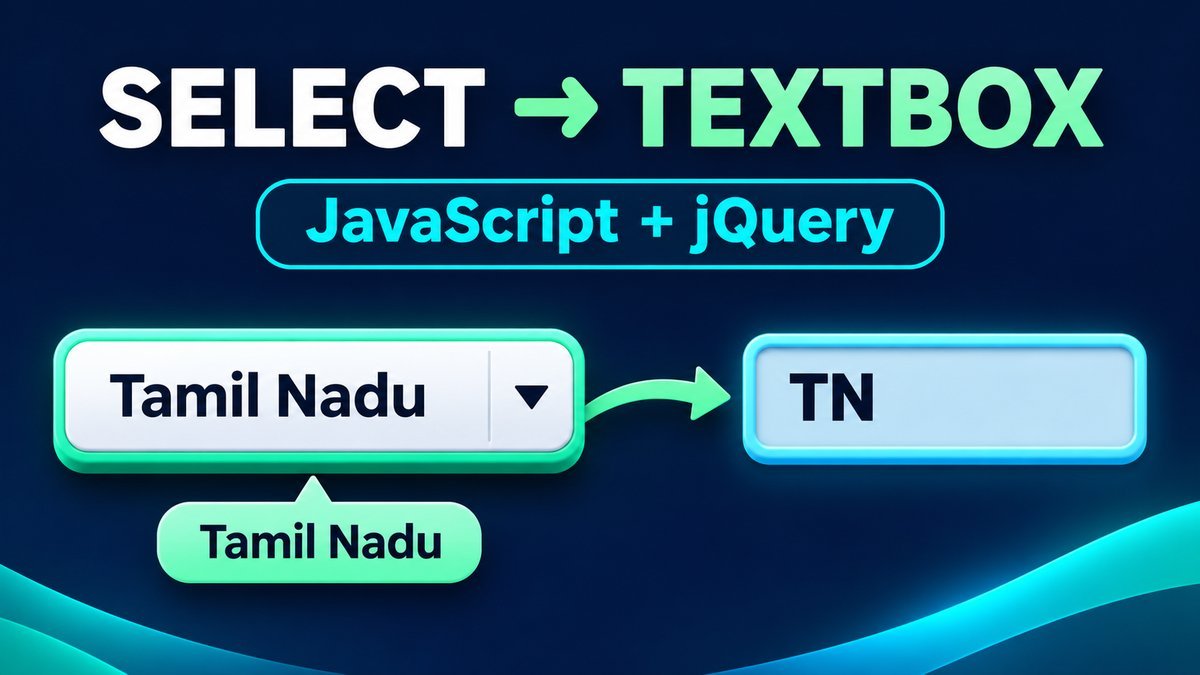
To change a textbox value based on a select box, listen for the dropdown’s change event, read its selected value, and assign that value to the textbox. Use textbox.value = select.value in native JavaScript or $textbox.val($select.val()) in jQuery.
This tutorial shows both approaches, explains option values versus display labels, and includes a working demo with a read-only textbox, Reset, and programmatic selection. The downloadable project contains the complete HTML, CSS and jQuery controller.
Live demo: copy a select option to a textbox
Choose a sample state to copy its short value. Enable Copy the option label to copy the visible name instead. The Choose Kerala in code button demonstrates setting the dropdown and updating the textbox through a triggered change event.
Copy a selection into a textbox
Choose a sample state. Copy its short value, or enable the label option to copy its displayed name.
No state selected.
The short identifiers are sample option values. This demo does not submit, save, or fetch any information.
Enable JavaScript to use this demonstration.
Option value and option label are different
<option value="TN">Tamil Nadu</option>In this example, TN is the option’s value and Tamil Nadu is its displayed text. Decide which one the textbox should show. MDN’s HTMLSelectElement.value reference explains how to read the selected option value.
| Goal | Native JavaScript | jQuery |
|---|---|---|
| Read selected value | select.value |
$select.val() |
| Read selected label | select.selectedOptions[0].textContent |
$select.find('option:selected').text() |
| Write textbox value | textbox.value = value |
$textbox.val(value) |
1. Create a labelled select and read-only textbox
<label for="state">State</label>
<select id="state">
  <option value="">Choose a state</option>
  <option value="TN">Tamil Nadu</option>
  <option value="KL">Kerala</option>
</select>
<label for="result">Selected value</label>
<input type="text" id="result" readonly>
The blank option has an empty value, so choosing it clears the textbox. A read-only text input keeps the copied result visible and selectable while preventing ordinary typing. Give each field its own label and unique ID.
2. Update the textbox with native JavaScript
const select = document.querySelector('#state');
const textbox = document.querySelector('#result');
function updateTextbox() {
  textbox.value = select.value;
}
select.addEventListener('change', updateTextbox);
updateTextbox();
Run this after the markup exists, for example using a deferred script or a DOM-ready handler. Calling the function once during initialization synchronizes any initial selection before the visitor changes it.
Use the textbox’s value property, not innerHTML or textContent. An input’s current text is a form value, not child HTML content.
3. Use jQuery val and change
jQuery(function ($) {
  const $select = $('#state');
  const $textbox = $('#result');
  function updateTextbox() {
    $textbox.val($select.val() || '');
  }
  $select.on('change', updateTextbox);
  updateTextbox();
});
This is an alternative to the native handler above, not a second handler you need to attach. The jQuery .val() reference documents reading and setting form values. The change-event reference describes binding the selection-change handler. The full downloadable demo uses this jQuery approach with prefixed IDs.
4. Copy the selected option’s label instead
If the result should say Tamil Nadu rather than TN, read the selected option’s displayed text. Keep the blank-option guard so the prompt is not copied into the result:
function updateTextbox() {
  const option = select.selectedOptions[0];
  textbox.value = select.value && option
    ? option.textContent.trim()
    : '';
}
MDN’s selectedOptions reference explains the selected-option collection. The live demo provides a checkbox that switches between the value and label without changing the selected state.
The short identifiers are illustrative option values; the example is not a complete geographic dataset. Use values and labels appropriate to your own data.
5. Update the textbox after changing a selection in code
// Inside your jQuery-ready handler:
$('#state').val('KL').trigger('change');
Setting .val('KL') alone changes the dropdown but does not automatically dispatch a change event. Trigger it or call the update function directly. The same principle applies to assigning select.value in native JavaScript.
select.value = 'KL';
select.dispatchEvent(new Event('change', { bubbles: true }));
The demo’s Choose Kerala in code button follows this pattern. Reset explicitly clears the selection and output, restores value-copy mode, and focuses the dropdown. It also refreshes the output after browser history restores the form controls.
Read-only versus disabled fields
Use read-only when visitors should be able to focus or copy a textbox without editing it. Use disabled when a control should be unavailable. For a real form, a named read-only text input can be submitted; disabled fields are excluded from normal form data.
Neither setting makes a browser value trustworthy. If a backend depends on the selected value, validate it there against your own authoritative data. This demo does not submit or store anything.
Download and run the full demo
Extract the ZIP and open index.html in a current browser. It includes a pinned local jQuery 3.7.1 file and its MIT license, so no build, backend or CDN is needed. This version matches the site’s WordPress copy and is not described as the latest release.
select-textbox-demo/
├── index.html
├── style.css
├── script.js
├── README.md
└── vendor/
    ├── jquery-3.7.1.min.js
    └── LICENSE-jquery.txt
On WordPress, enqueue the controller using the existing jquery dependency rather than loading another copy. IDs and styles are prefixed swcst. If you add more instances, use unique IDs and scope each handler to its component.
Common textbox update problems
| Problem | Fix |
|---|---|
| The result never changes | Check the selector IDs, script order and event binding. |
| The code appears instead of the state name | Read option text when you want the display label. |
| The value changes in code but the result is stale | Trigger change or call the synchronization function. |
| The initial result is blank despite a selected option | Call the update function during initialization. |
| The prompt appears in the textbox | Clear the output when the selected value is empty. |
| Multiple examples interfere | Use unique IDs and one scoped controller per component. |
Frequently asked questions
Can I change textbox value without jQuery?
Yes. Bind a native change listener and assign select.value to textbox.value.
Why does text() not update my input?
A textbox stores its displayed text in the value property. Use .val() for jQuery form inputs.
Can I keep the textbox editable?
Remove readonly, but decide whether the next dropdown change should replace any manual edit. This demo intentionally uses a copied read-only result.
Does setting val trigger change automatically?
No. Trigger change or call the update function after a programmatic assignment.
Does this work with a multiple-select control?
The example is single-select. A multiple-select needs a rule for combining selected values or labels; do not assume one string is sufficient.
Does the demo send my selection anywhere?
No. It only updates fields in the current page and creates no persistent storage.
Try both copy modes
Test each state, the empty option, value and label modes, programmatic selection and Reset. Download the project to adapt the labels and values for your own form.