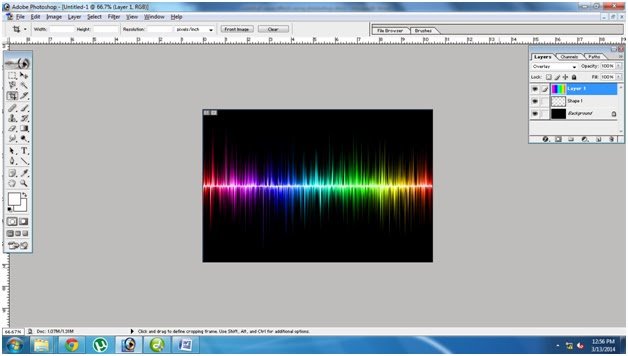

colorful wave effect using Photoshop:

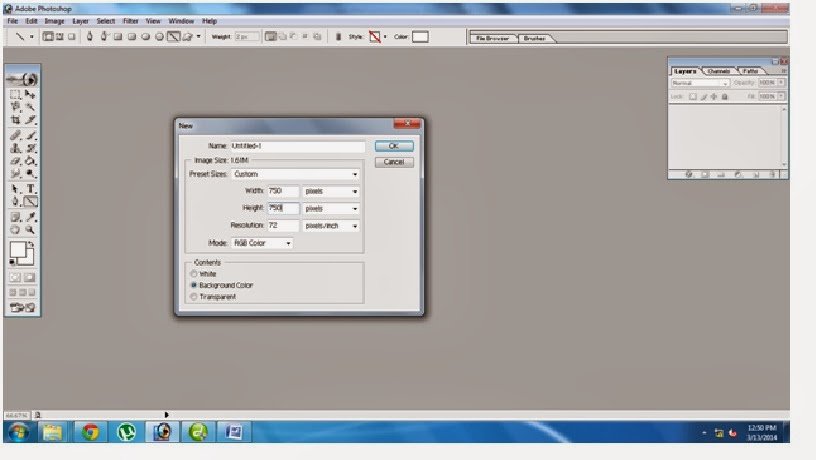
Step1: Go to file create New select the width and height
what u required.
what u required.
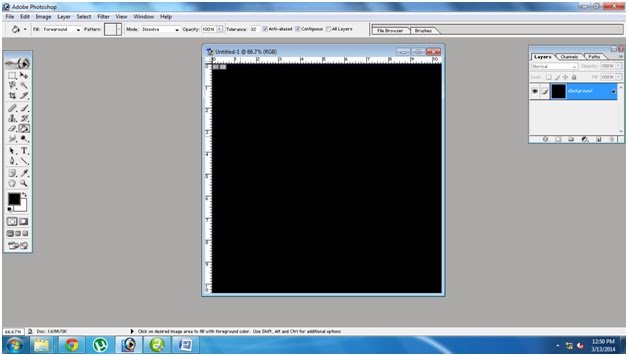
Step2: Using paint Bucket fill black color as a background.
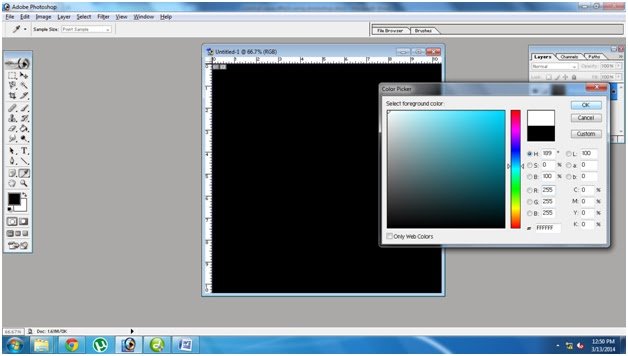
Step3:Next choose the color white:
Step4:Create new Layer
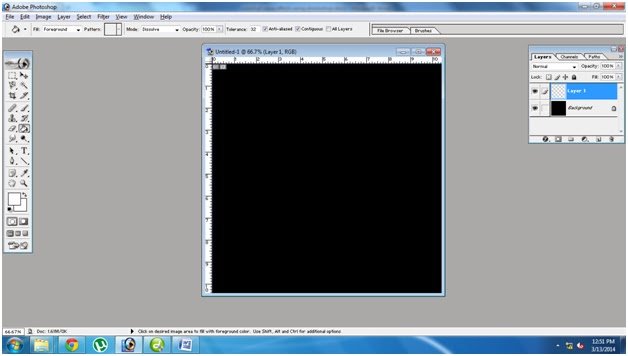
Step5:Draw a straight Line using line shape.
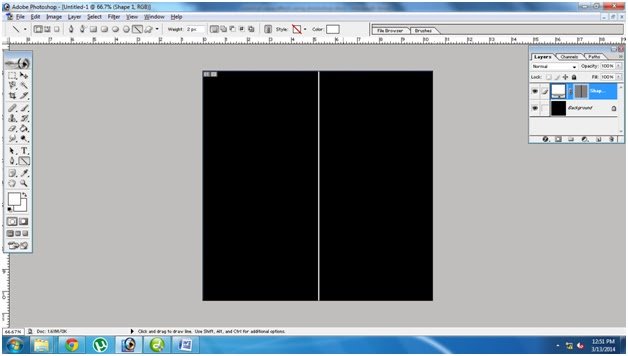
Step6:Go to Filter -> Stylish -> wind and select it.
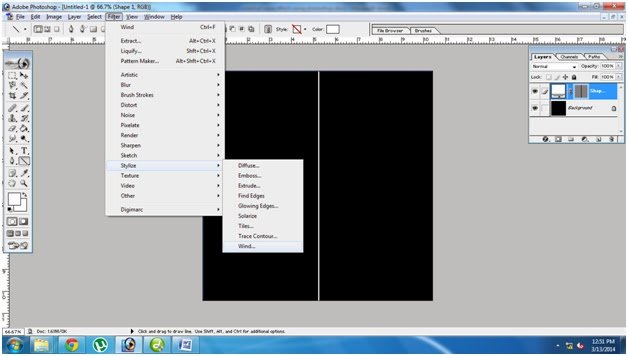
Step7:Click ok
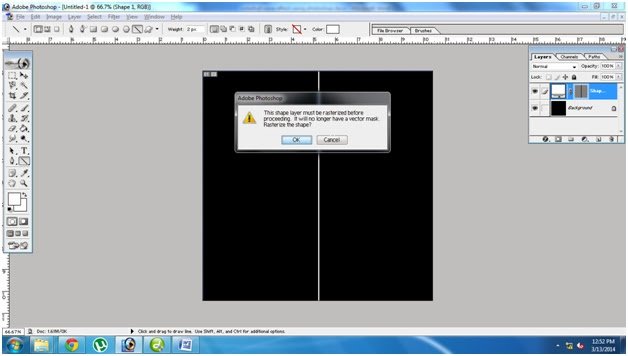
Step8:Choose From the left
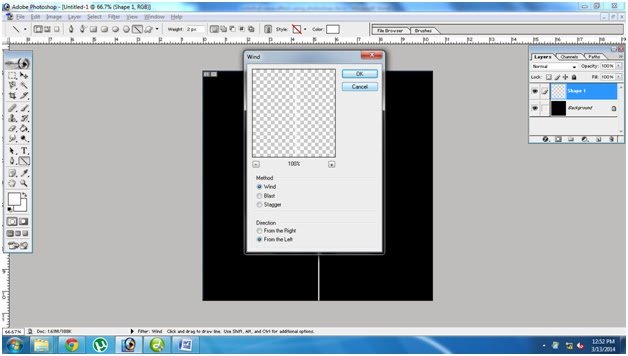
Step9:Press Ctrl+F
two times
two times
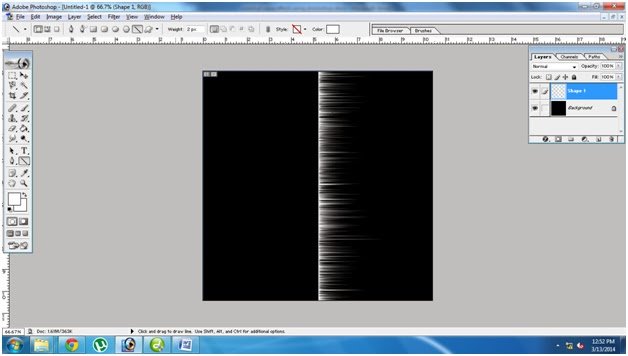
Step10:Choose From the right
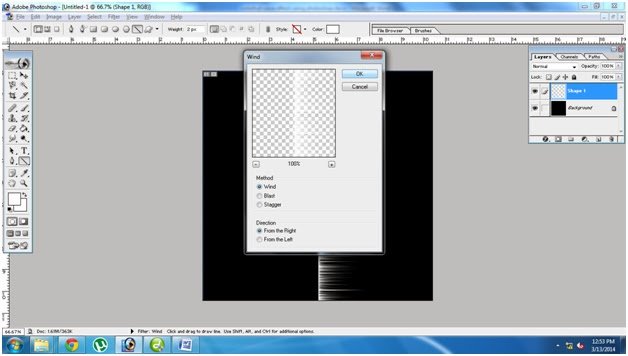
Step11:Press Ctrl+F
two times.
two times.
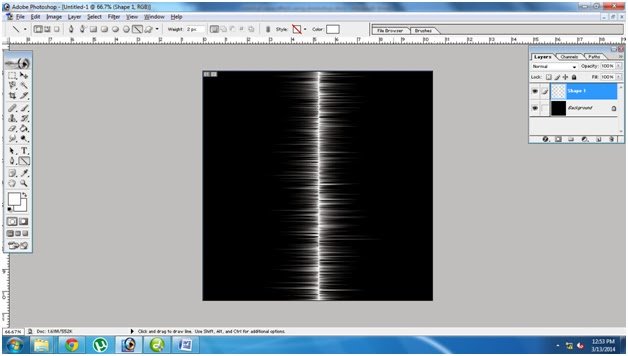
Step12: Press Ctrl+T
and Right Click Rotate it 90 degree Clock wise.
and Right Click Rotate it 90 degree Clock wise.
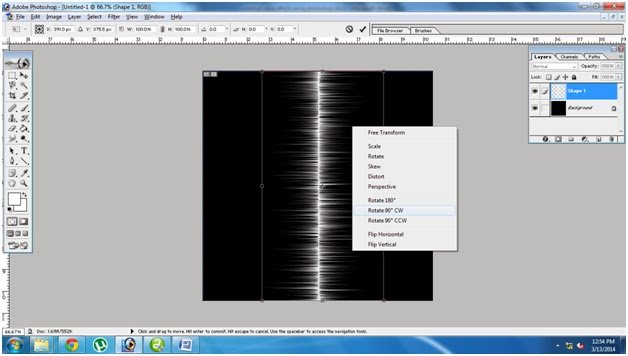
Step13:The images shown like this.
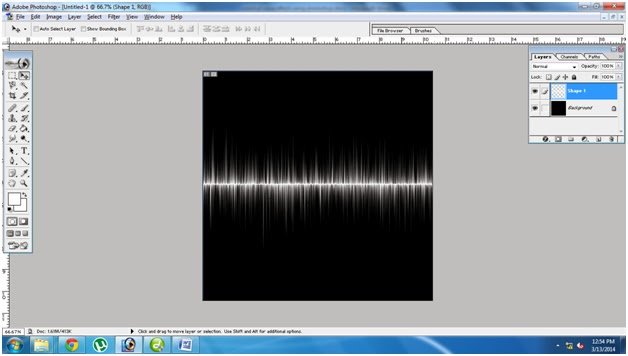
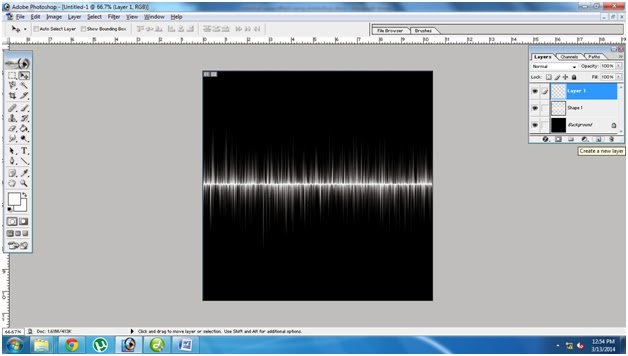
Step14:Create new Layer:
Step15:Select Gradient tool and select any one predefined
gradient color like below
gradient color like below
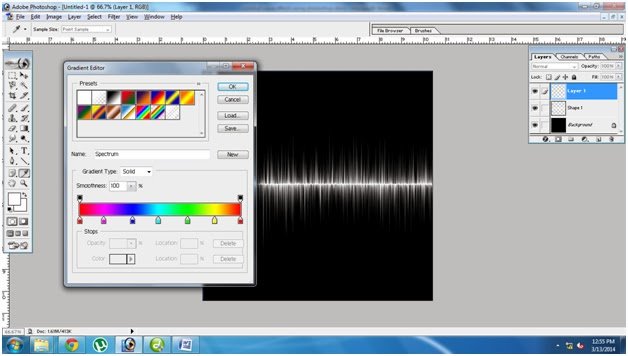
Step16:Drag in the New Layer like below diagram.
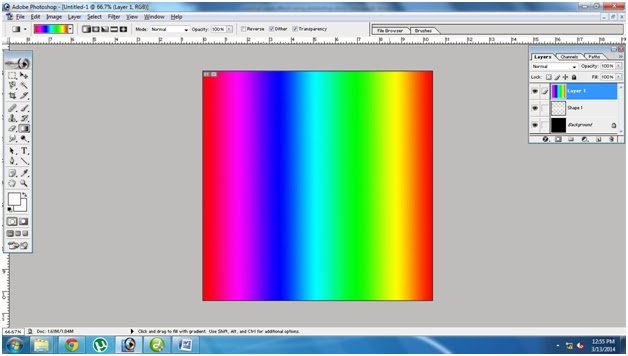
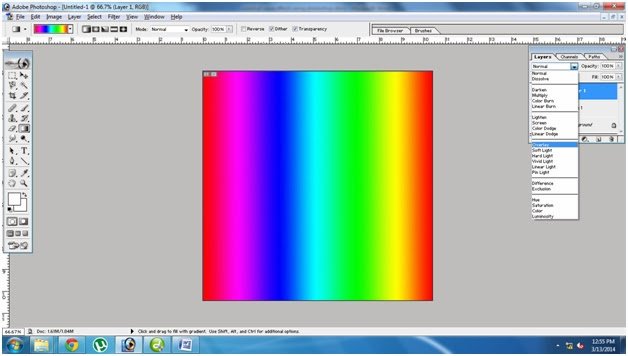
Step17:Change the layers from Normal to Overlay.
Step18:The images Shown like this.
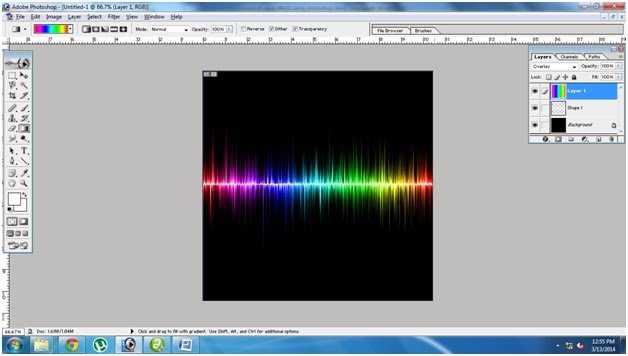
Step19:Cut the diagram using crop tool.