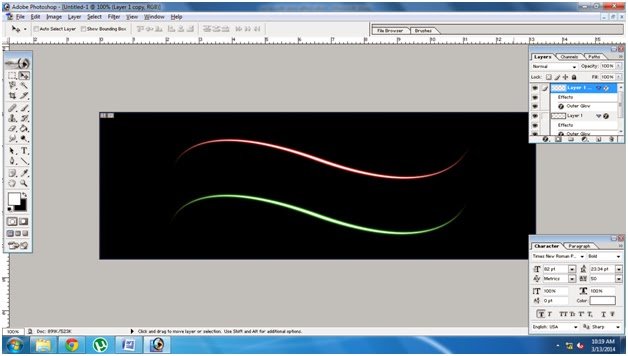

This post help you how to create the simple curve with glow effect with differnt colors with dark background with Photoshop. Here is the steps to create the glow effect with the help of photoshop. Each steps having the perfect screenshots, So you can easily learn this effects.

Step:1
File->New ->Set width and height u want.
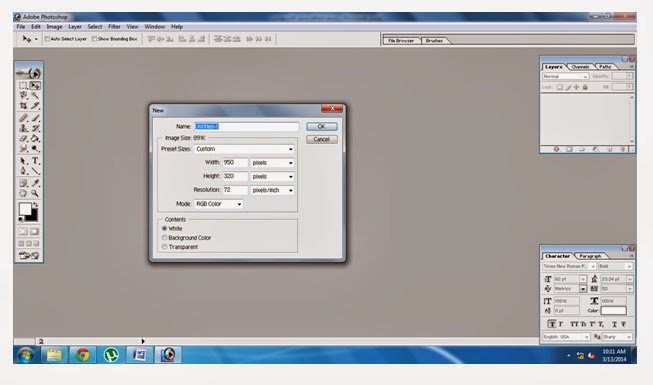
Step2:
Set Background as a Black
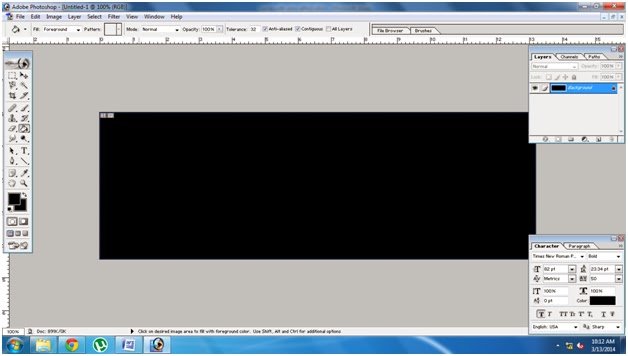
Step3:
Double Click Background Layer and make it as a layer
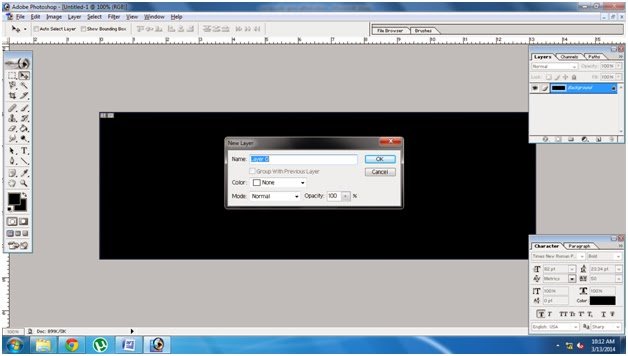
Step4:
Select White color
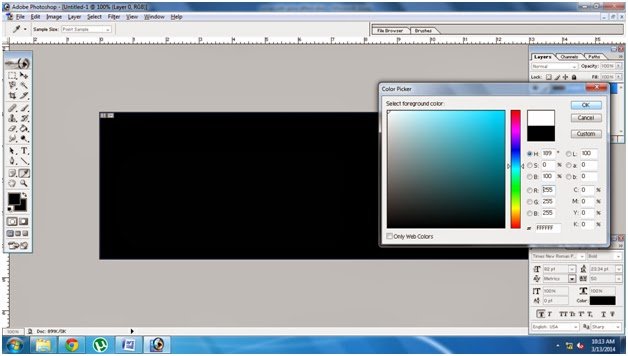
Step:5
Create a New Layer
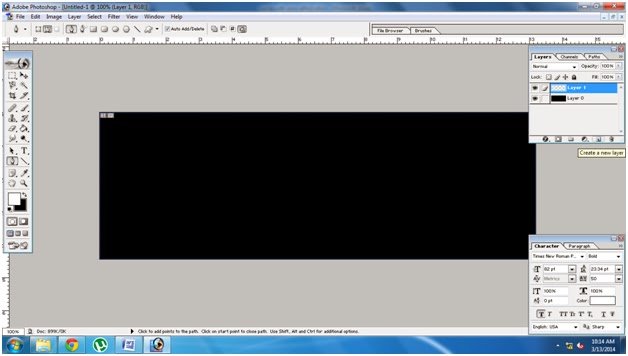
Step:6
Using Pen tool Draw the Shape
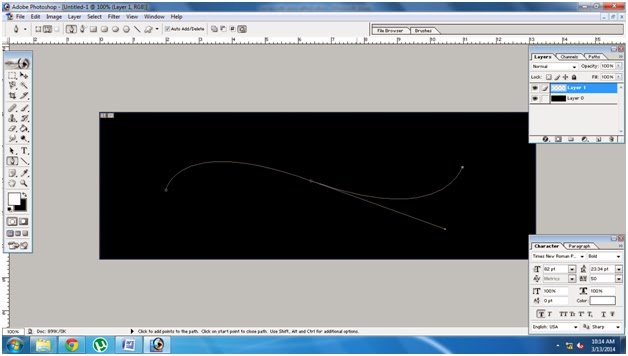
Step 7:
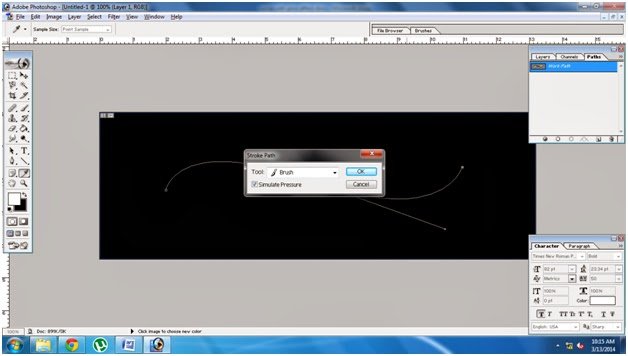
Go to path and select the stroke path
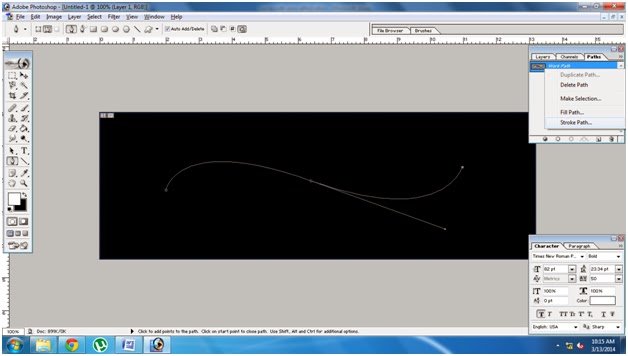
Step 8:
Select in this Stroke path in Brush Tool and then click ok.
If unselected the simulate pressure please select it.
If unselected the simulate pressure please select it.
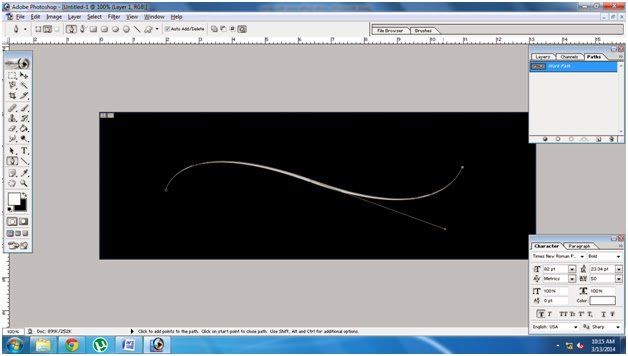
Step 9:
Now it will look like this
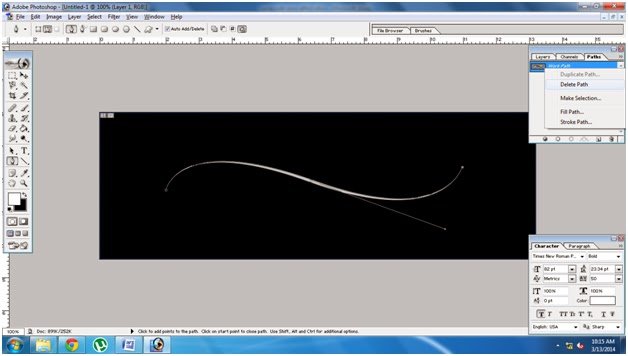
Step 10:
In path Select the Delete path
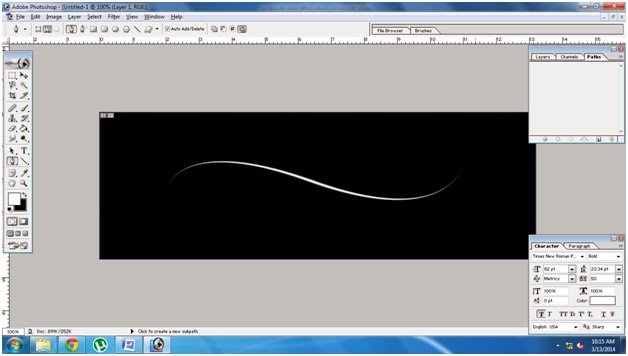
Step 11:
Now it will look Like this
Step12:
Now give the outer glow for
this curve
this curve
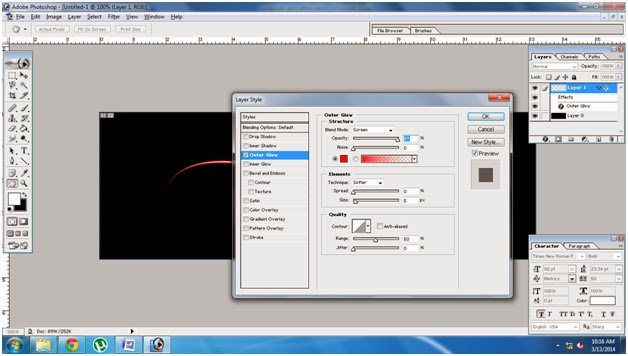
Step13: