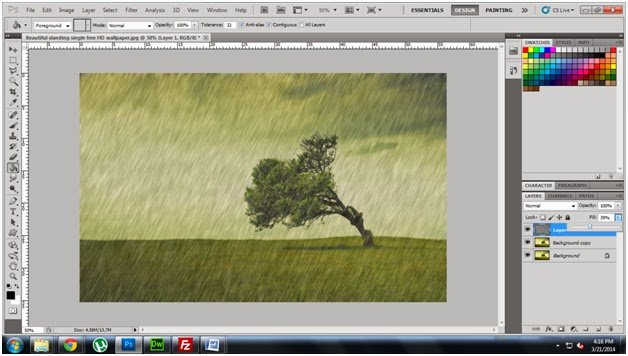

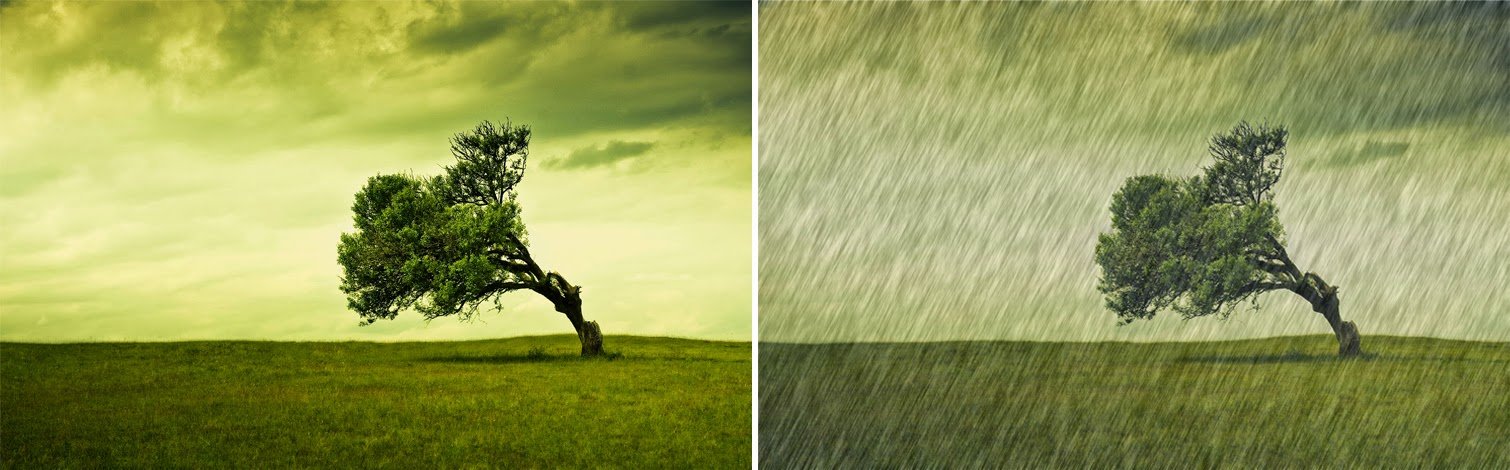
In This post i am explain about Raining Effect in Photoshop it is very easy to create , Just Follow the steps you can easily understand this effect, I think it won’t work in Photoshop 7 because u don’t have some option in that , Try it in Photoshop cs5. The final result is looks like the above image.
Step1: Open the new Image
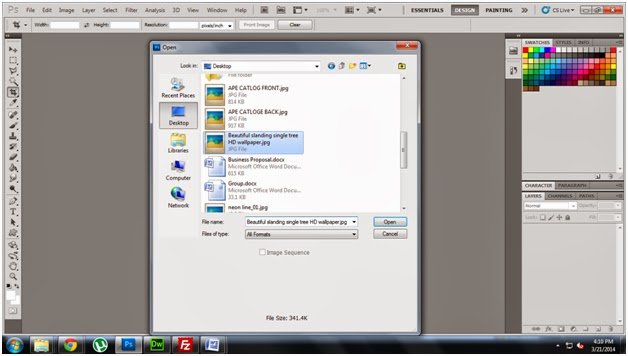
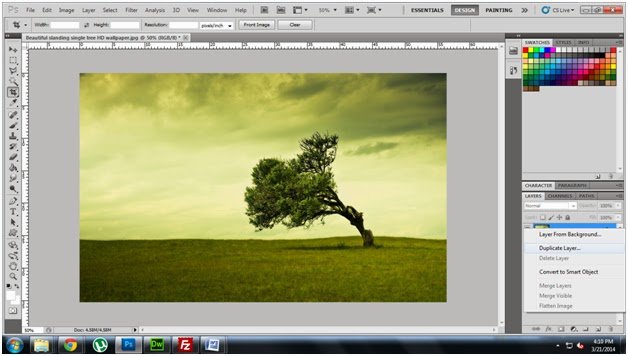
Step2: Right click the Background image create duplicate
layer
layer
Step3:Create New Layer
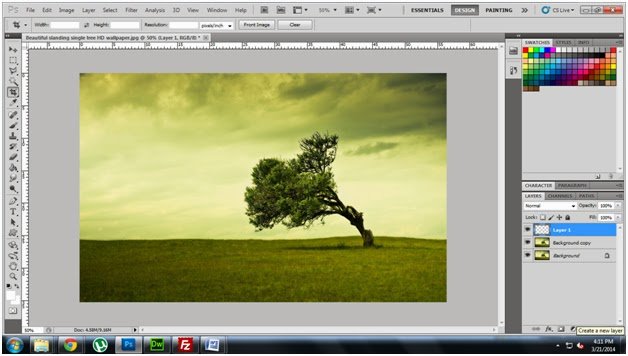
Step4: Choose paint bucket and Choose black color
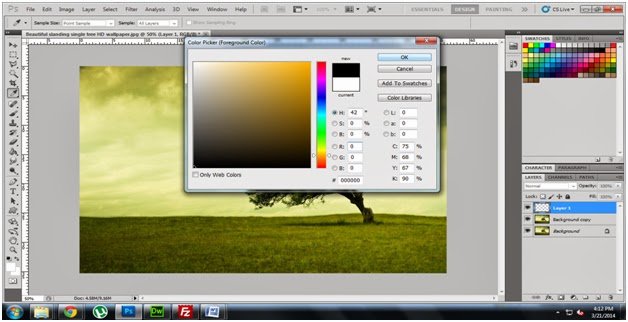
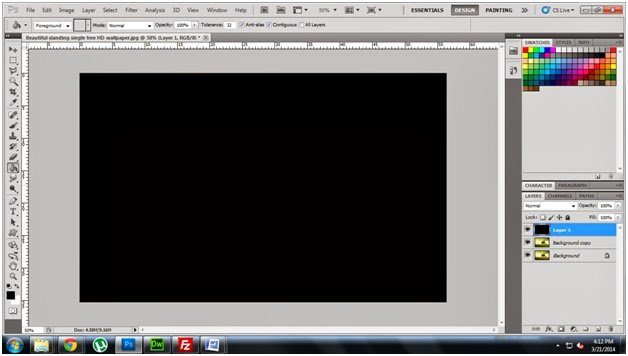
Step5: Fill Black color in new layer
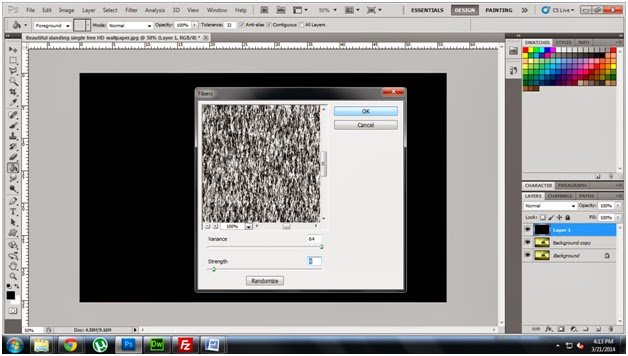
Step6: Go to Filter->Render in that Fibers
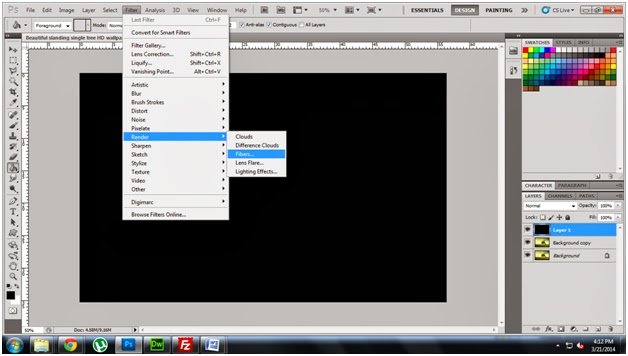
Step7: Fix Variance 64 and strength 4
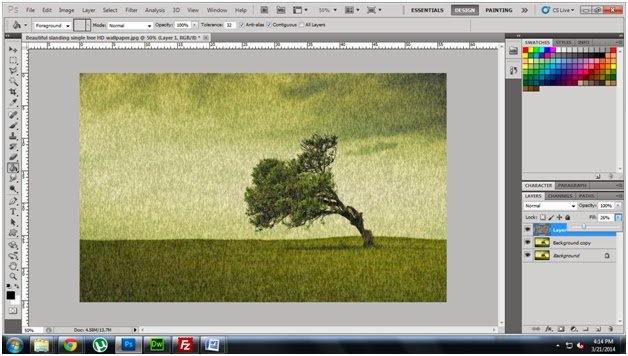
Step8: Fill the layer 26% like below diagram.
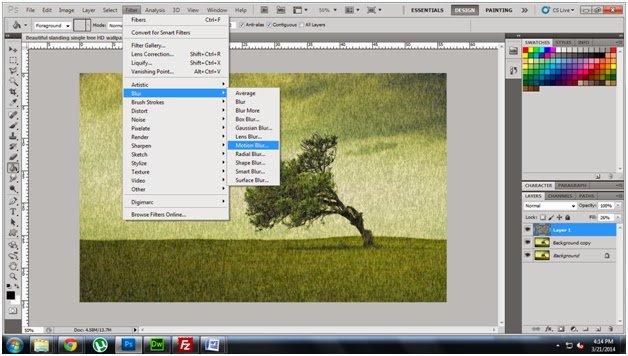
Step9: Go to Blur->Motion Blur
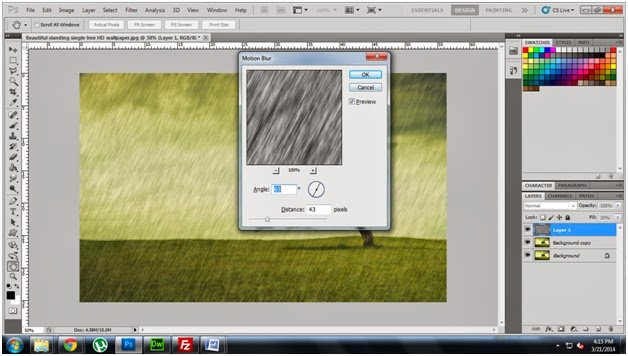
Step10: Fix angle 63 Degree and distance 43 pixels
Step11: Fill the same layer 39% Now see the result